Product List and Management
Managing the product inventory, which is the heart of your store, accurately and completely directly affects your customers' shopping experience. When you enter the Product page under the catalog, you reach the main control panel where all products in the store are listed.
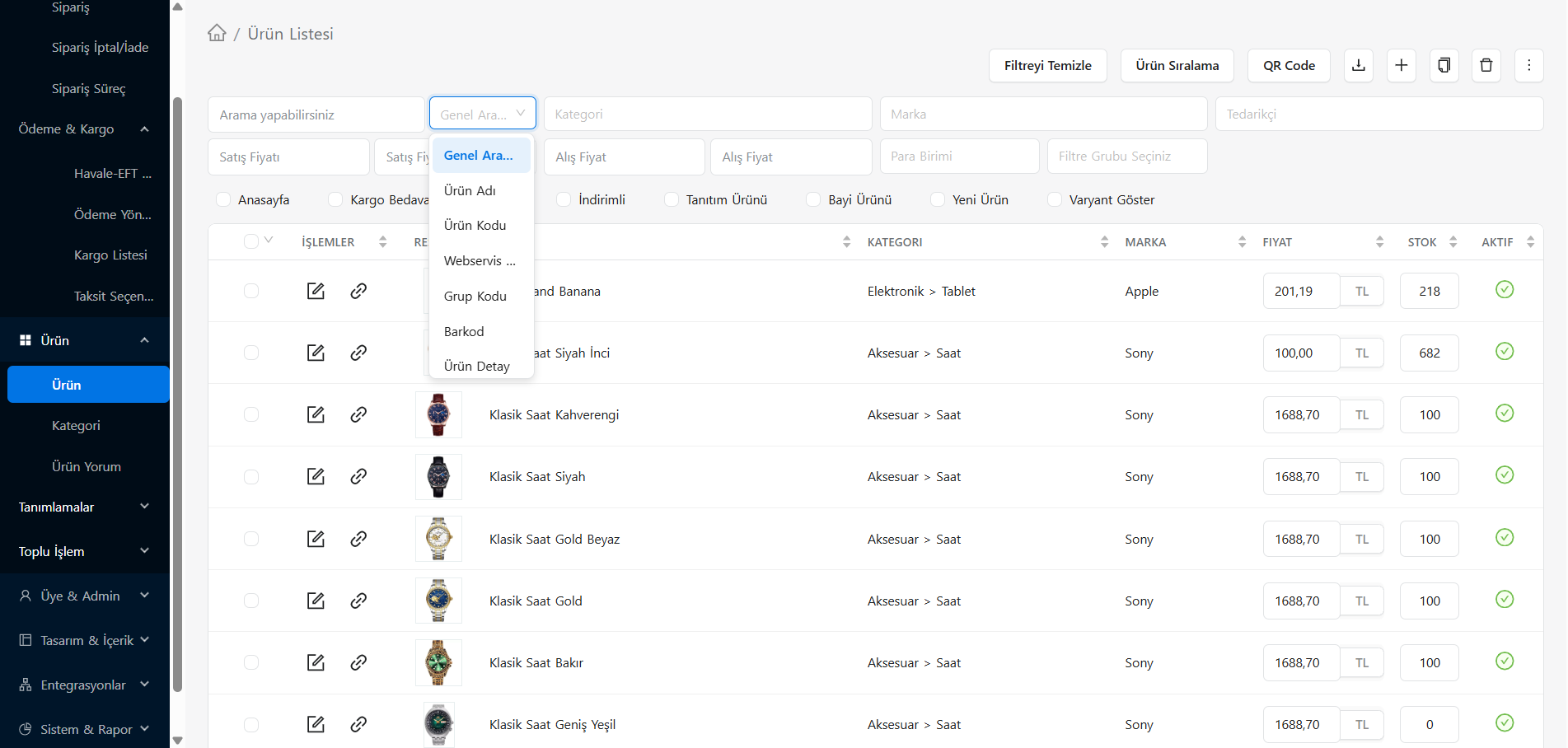
1. Product List and Table View
The main list on the screen contains a summary line for each product. The buttons and data in these lines have the following functions:
- Actions (Edit and Link Icons): The pencil (edit) icon at the beginning of the line directs you to the Product Detail panel where you will change all the details, price and features of that product. The chain (link) icon next to it allows you to open the product with a single click on the site frontend (showcase) as seen by customers.
- Category, Brand, Price and Stock: These are the columns where you can quickly check the basic inventory data of the product without leaving the page.
- Active (Status): By clicking on the green check icon on the far right, you can temporarily remove the product from sale, hide it (inactive) or re-release it.
2. Advanced Filtering and Searching
You can use the advanced boxes at the top to instantly find exactly what you are looking for among thousands of products on your e-commerce site:
- General Search: You can choose from the dropdown menu based on data such as Product Name, Product Code, Barcode or Webservice Code and write your keyword in the field next to it.
- Category and Price Filters: You can obtain pinpoint lists by targeting only a specific Category, Brand or "Buying/Selling Price" range.
- Quick Status Filters (Checkboxes): You can filter the product groups included in that campaign or format in seconds by checking the boxes such as "Home Page, Free Shipping, Discounted, Dealer Product" located right under the filtering bar. After your selections are finished, the Clear Filter button at the top resets the entire list.
3. Batch Operations, Export to Excel and QR Code
In the upper right part of the list are practical tools that speed up operations:
- Export (Download Icon): By clicking on the export button located just to the right/next to the QR Code button, you can download the data dump of all products currently listed (or filtered) to your computer in Excel format. It is extremely useful for accounting reports or stock counts.
- Create QR Code: You can quickly generate a QR code for a special product information page or your marketing campaigns.

In the window that opens, simply specify the address (URL) to which the QR code will be directed, the pixel-based visual quality (size) and margins, and click Create. You can add these QR Codes to flyers, in-store shelves or shipping boxes.
4. Product Details and Tabs
When you click on the edit icon in the product list, you will be transferred to the Product Details screen, where all the settings of the product are located, and when you press the "Add" button, you will be transferred to the completely empty version of the same structure.
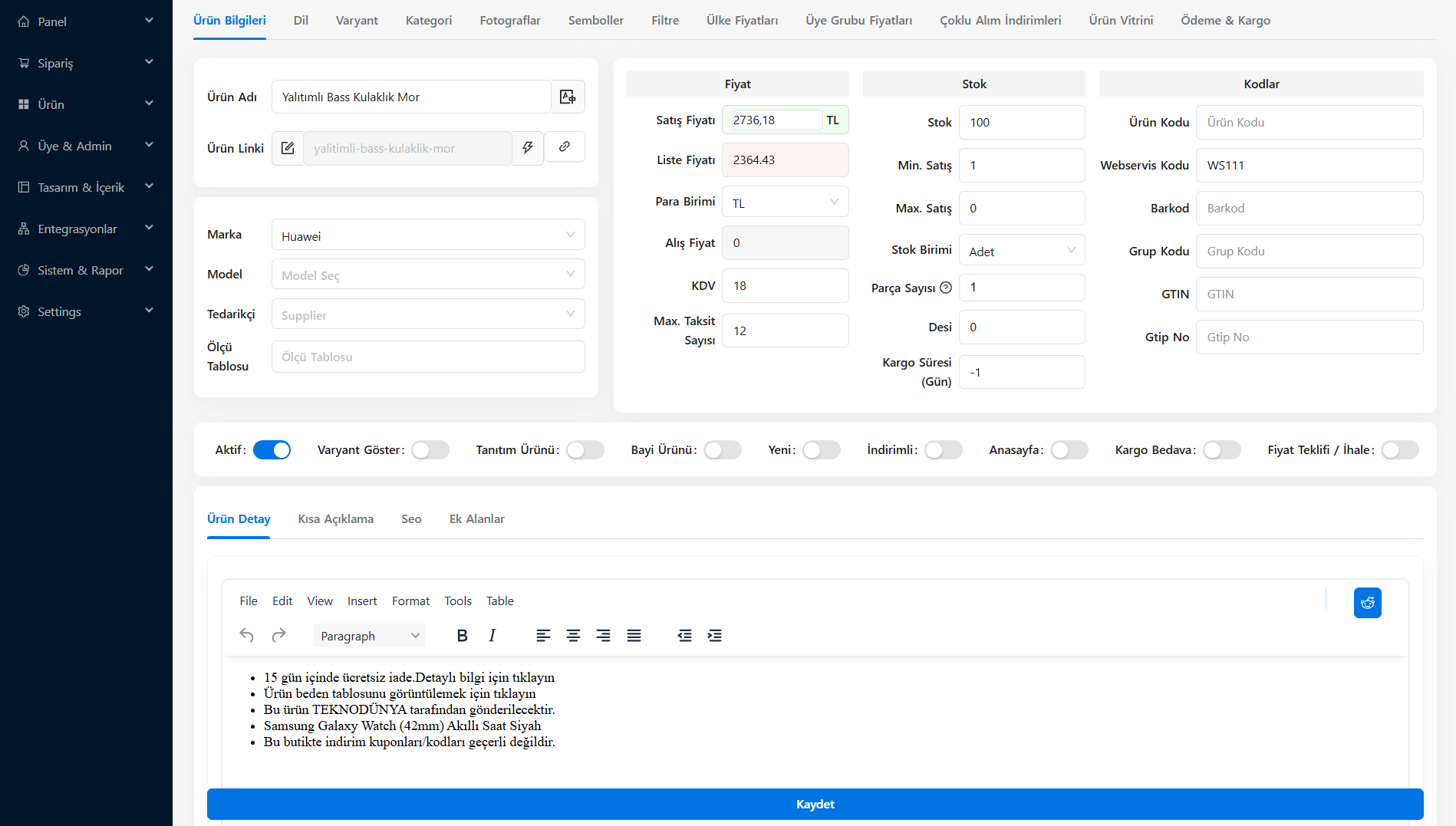
At the top of the page are logical Tabs that allow you to manage dozens of parameters without getting confused:
- Product Information (Main Tab): It is the main center where you assign integration information such as the name of the product, the brand it is connected to, sales and list prices including/excluding VAT, stock amount, desi status and Barcode/WS Code. At the bottom of the screen, there is an advanced "Rich Text Editor" (Short Description, Product Details sub-tabs, etc.) where you can enter promotional texts and warranty conditions to be displayed in the product details.
- Settings Tabs (Language, Category, Photos):
- Language: If multi-language use is active on your site, this is where the product name and description are translated according to different geographies.
- Category: You control in which breakdowns (e.g. Technology > Sound Systems > Headphones) the product will be displayed in your menus.
- Photos: This is the area where photos, which are the main tool that affects the customer, are added and their order can be changed by dragging.
- Advanced Configuration Tabs:
- Variant: If the product has options such as Number, Color or Size, stock and price combinations specific to those breakdowns are created from this tab.
- Filter: In the left search panel, attribute assignments are made so that your customers can filter the relevant product according to its features (Ex: Headphone Type: On-Ear).
- Pricing and Marketing (Multiple Purchases, Related Products, etc.): All sales-enhancing equipment, such as giving discounts for wholesale purchases (Multiple Purchase Discounts), setting prices by country or for special member groups such as "Dealer", and offering "Complementary Products" that can be added to the cart under the cart, are easily managed from their own tabs.
(We can enrich the visual content as we add new screenshots of the features you need for the rest of the system.)