General & System Settings
Settings > All Settings > General & System screen is the main center where you determine the basic identity, regional infrastructure and general operation of your e-commerce site.
In this section you can perform the following configurations:
Site Settings
This is the area where you configure your site's basic credentials, publishing and SEO settings.
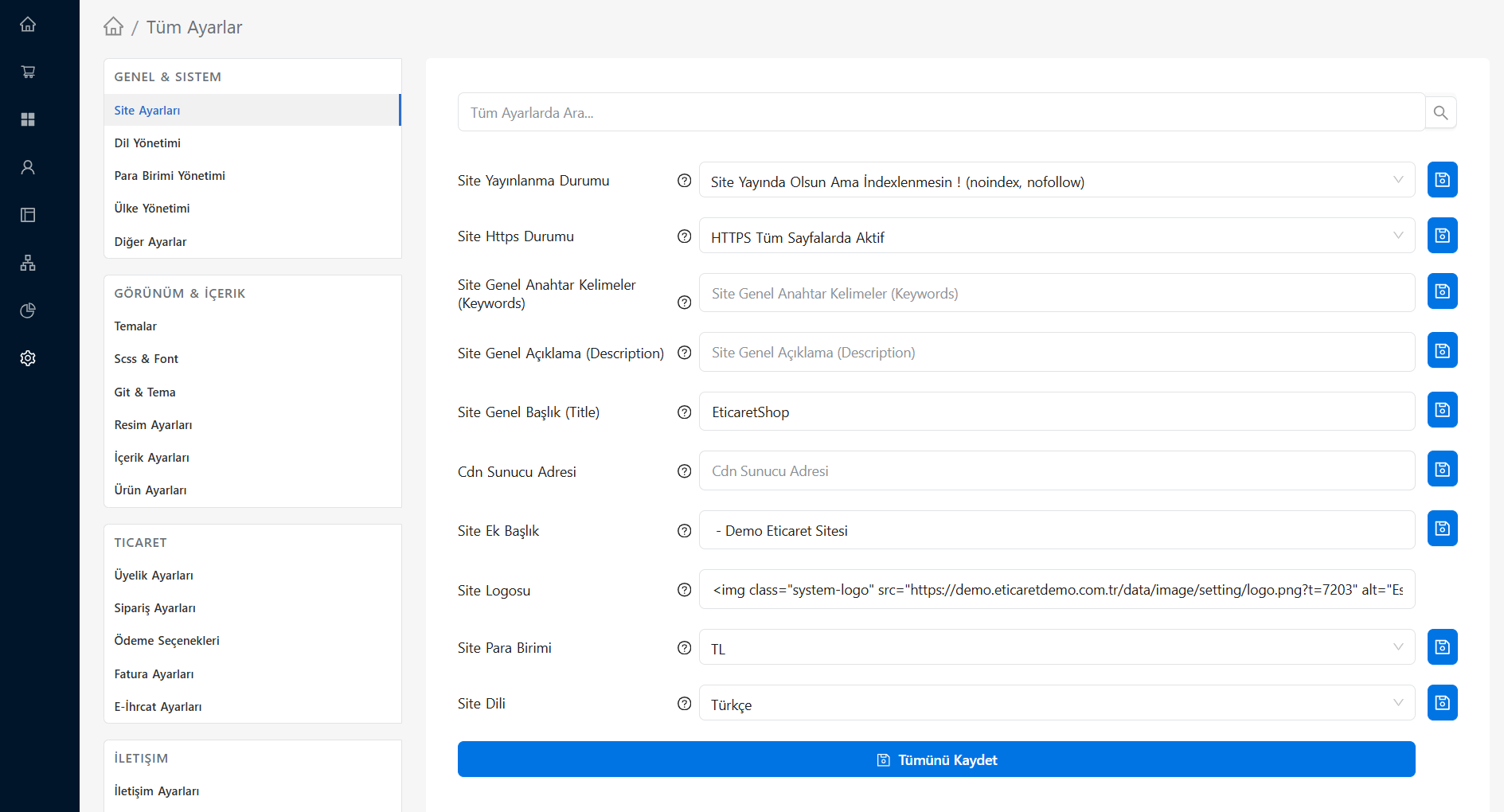
- Site Publishing Status: It determines how your site will be perceived by search engines and its publication status (eg: Live, Maintenance Mode or Not Indexed).
- Site Https Status: You can set which pages your site's SSL security certificate (HTTPS) will be active on.
- Site General Keywords: These are keywords that reflect the general content of your site for search engines.
- Site General Description: This is the short description text that will appear under the title of your site in search engine results.
- Site General Title (Title): This is your main title that will appear in the browser tab and search engine results.
- Cdn Server Address: You can enter the address of the CDN infrastructure you use to load your static files (images, css, etc.) faster here.
- Site Additional Title: This is the additional text or slogan to be added next to your main title (Ex: "- Demo Ecommerce Site").
- Site Logo: This is the area where you can upload your main logo that will appear on every page of your site.
- Site Currency: The currency that your site will use by default.
- Site Language: Determines the default display language of your site.
Language Management
If you are e-exporting or selling to different regions, you can add and manage multiple languages to your site.
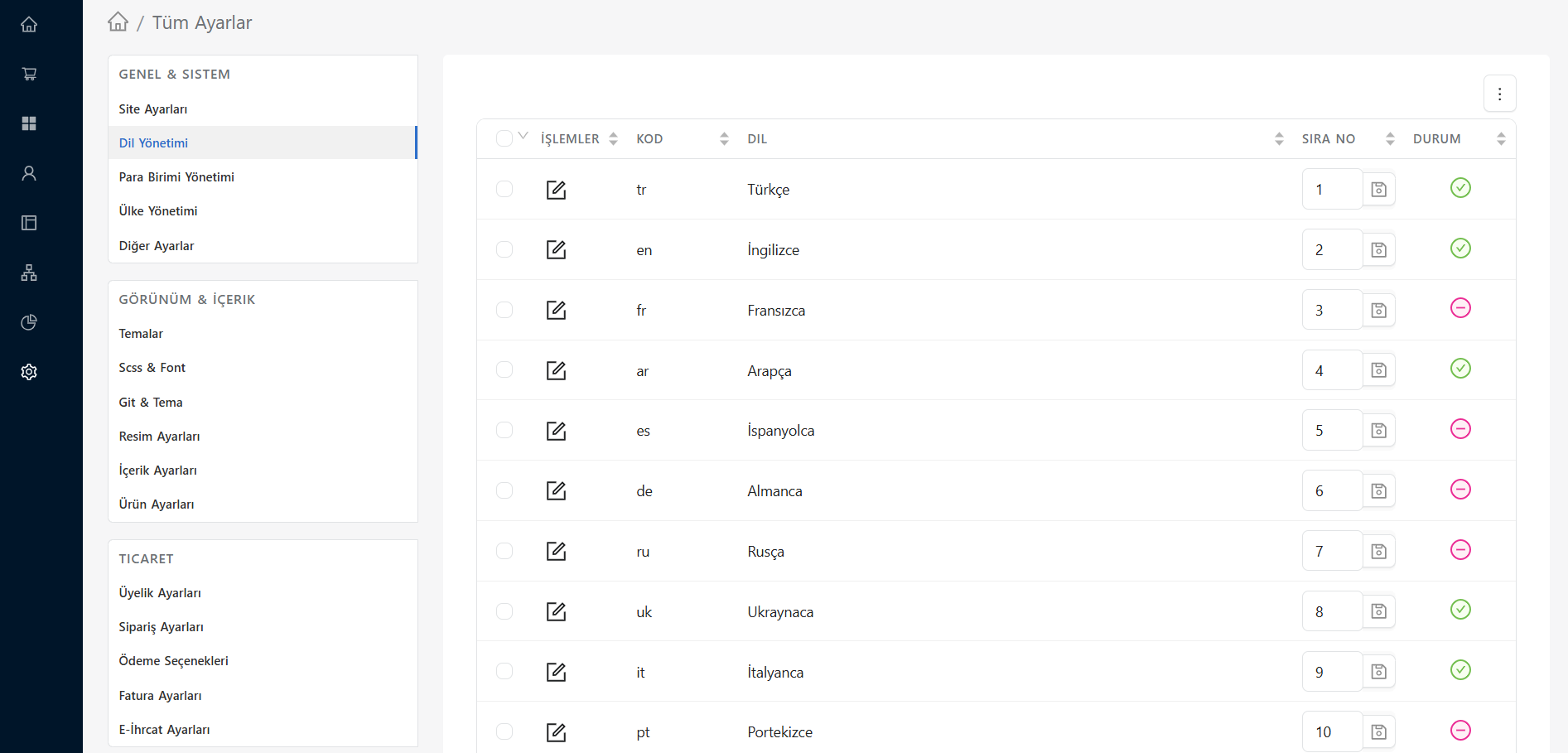
- Code: International abbreviation of the added language (Ex: tr, en, de).
- Language: The name of the language that will be displayed on your site.
- Order Number: Determines the order in which the languages will be listed on the site (in the language selection menu).
- Status: Allows you to control whether the relevant language will be active (green check) or inactive (red minus) on your site.
- Actions: You can access the details of the relevant language by clicking on the Edit (pencil) icon.
Currency Management
This is the area where you manage the payment currencies, exchange rates and representations valid on your site.
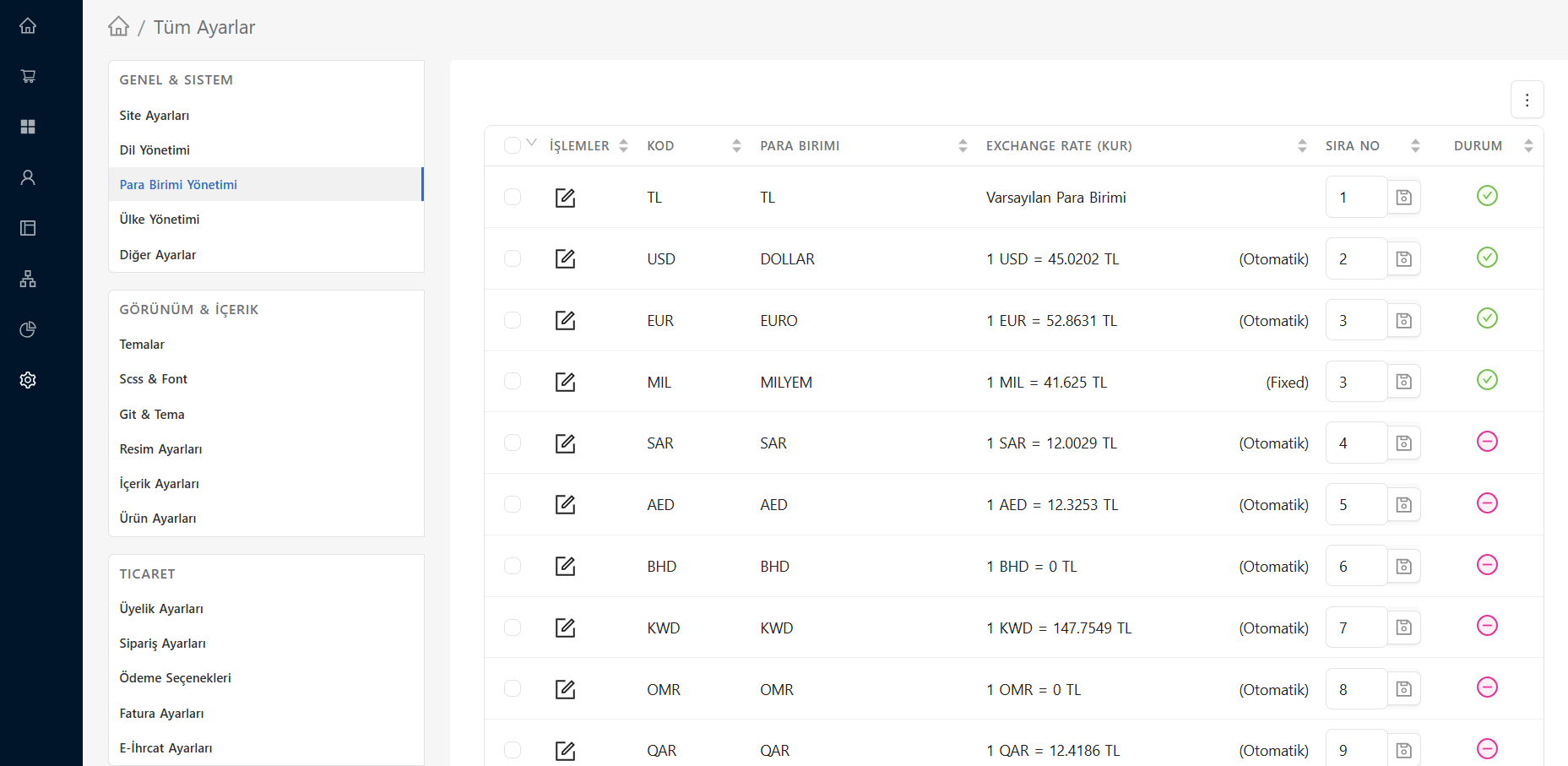
- Code: International abbreviation of the currency (Ex: TL, USD, EUR).
- Currency: This is the name of the currency defined in the system (Ex: DOLLAR, EURO).
- Exchange Rate: Shows the exchange rate of other currencies relative to your default currency. Indicates whether exchange rate updates are automatically drawn from the Central Bank or fixed manually.
- Order Number: Determines the order in which currencies will be listed on the site.
- Status: Allows you to control whether the relevant currency will be active (green check) or inactive (red minus) on your site.
- Actions: You can fix the exchange rate or update the currency settings by clicking the Edit (pencil) icon.
Country Management
Country Management screen, which forms the backbone of your e-export or international sales operations; It is the area where you determine how your store will behave in different geographies.
On this screen, you can list the countries from which you will receive orders; You can configure critical settings such as language, currency, shipping region, and pricing (price area) to apply to each country.
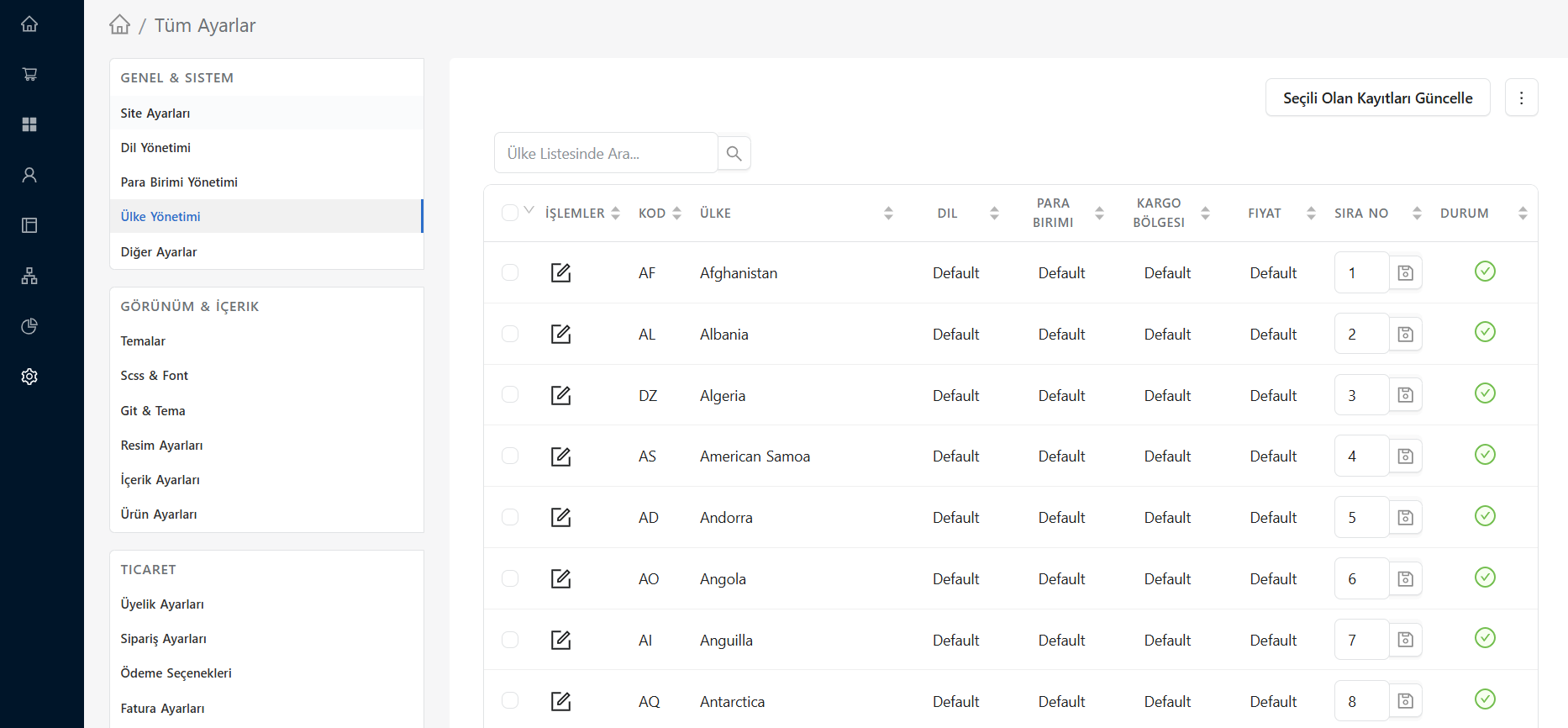
List View and Functions
- Code / Country: Shows the international ISO abbreviation and full name of the country.
- Language: Specifies the default language that will be automatically selected for visitors accessing your site from this country. (The "Default" option preserves the main language of the site.)
- Currency: It is the shopping currency that will be displayed to users connecting from the relevant country location.
- Shipping Region: It refers to the delivery or cargo pricing region that the country is included in.
- Price Field: Indicates whether a different pricing template specific to the country (Ex: International price, European price, etc.) has been assigned.
- Order Number: Determines the order in which countries will be listed in the basket, payment and membership forms.
- Status: Checks whether the country is open for sale and member registration (active/passive). Passive countries are not listed on address selection forms.
- Actions: By clicking on the Edit (pencil) icon, you can update the detailed settings of the selected country or define its subregions (City/State).
Advanced Country Configuration
🌍 Global Dynamic Pricing and Location Detection
When your store is accessed from different countries, the E-Ticaret Shop infrastructure can automatically change the site's language, currency, shipping region and product prices according to the standards of that country.
To fully activate this:
- Find the countries you want to serve from the list and turn them Active.
- Define specific location settings (Language, Currency, etc.) for each country by clicking on the Edit (Pencil) button for that country.
- Determine the sales price that will be valid for the relevant country from the Country Prices tab in the editing window of each product.
1. Individual Country Editing
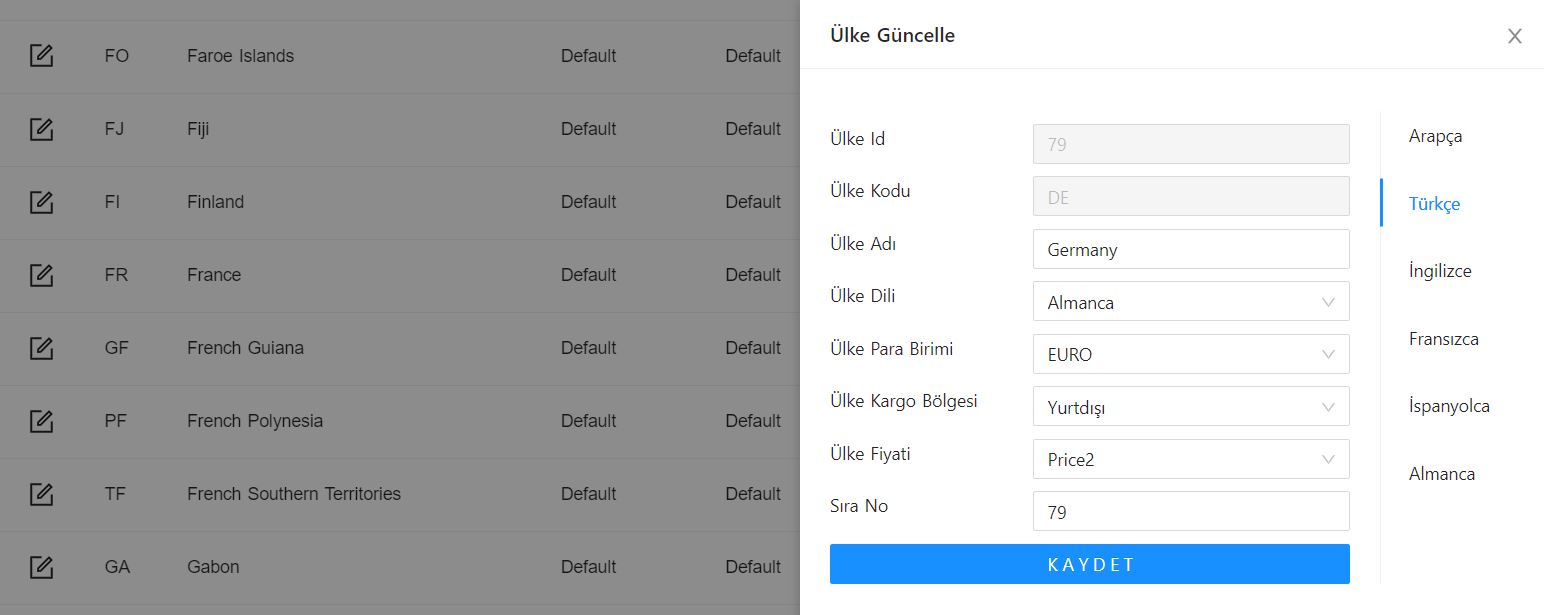
You can access the details of that country by clicking the Edit (pencil) icon next to any country in the list. On this sub-screen, you can manage the sub-regions (city/state) of the selected country and change general parameters such as the country's currency, language and regional cargo limits.
2. Bulk Record Update
If you want to change the settings for multiple countries at once with a single click (for example, changing the currency of selected European countries to EUR and the language to English), you can use the advanced bulk update tool:
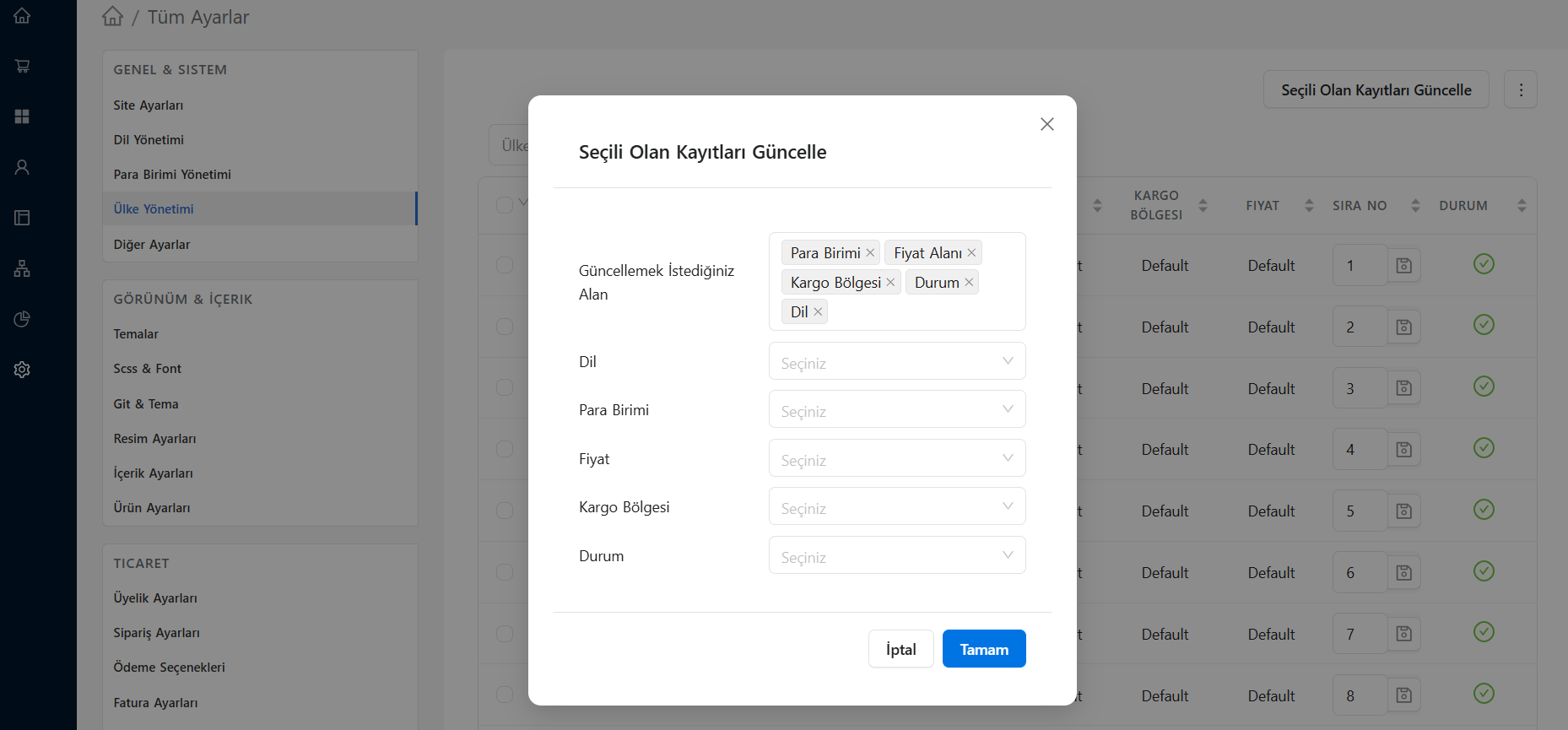
- Check the boxes to the left of the countries you want to conduct transactions with from the list.
- Click the Update Selected Records button located in the upper right corner of the list.
- In the window that opens, tick the Field You Want to Update options (Language, Currency, Price Field, etc.) that you need.
- Specify the new values to be collectively assigned for the activated options at the bottom and save the process by clicking OK.
Other Settings
It is the area where you manage various technical configurations of your site such as performance, theme and security.
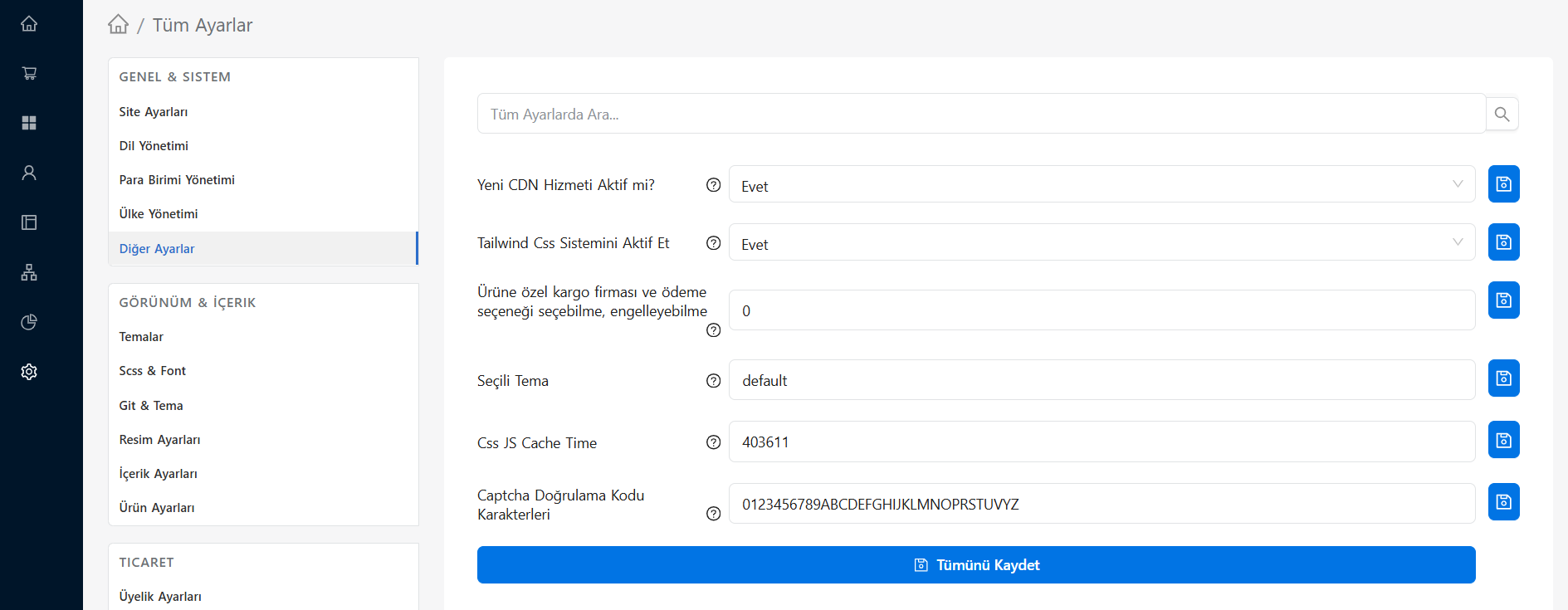
- Is the New CDN Service Active?: Allows you to activate or deactivate the new generation CDN (Content Delivery Network) service to increase the speed of your site.
- Activate Tailwind CSS System: Determines whether you will use the Tailwind CSS library in your site's interface. (Applies to developers or custom themes).
- Ability to Select/Block Product-Specific Cargo Company and Payment Option: Controls the infrastructure that allows specific cargo company or payment method restrictions for certain products.
- Selected Theme: Shows the folder name (eg: default) of the theme actively used on your site.
- Css JS Cache Time: Determines how long CSS (design) and JS (software) files will be cached in browsers. You can manage this value for immediate reflection of changes or performance.
- Captcha Verification Code Characters: It determines which letters and numbers will consist of the security codes (Captcha) appearing in forms (contact, registration, etc.). You can remove unwanted characters from here.