Marketplace Integrations
Thanks to marketplace integrations, you can list all the products in your E-Ticaret Shop store — or only the specific products you choose — on any marketplace you want with a single click. Orders coming from marketplaces are collected under one roof, so you can easily track and manage all your orders from your admin panel.
💡 Tip: Marketplaces help you make your store or brand known faster and reach a much wider audience with your products! 🚀
The main advantages that E-Ticaret Shop marketplace integration provides you are:
- You can set marketplace-specific prices.
- Your prices and stock are updated automatically at the intervals you define.
- You can set a minimum stock limit for listing on the marketplace. This removes the risk of cancellations caused by insufficient stock.
Which Steps Should I Follow to List Products?
The system-specific setup steps for each marketplace are detailed below. However, the basic steps you need to follow before you start listing products on any marketplace are:
- Opening a Store: If you do not yet have a seller account on the marketplace you want to integrate with (Trendyol, Hepsiburada, N11, etc.), complete your store application first.
- Entering API Information: Enter the API information you obtained from the marketplace and the general integration settings into the relevant fields on the Integration Information tab in your admin panel.
- Category and Filter Matching: Match the categories and filters on your site with the marketplace's own category tree and attributes.
- Listing: Once all settings are complete, you are ready to transfer your products to the marketplace!
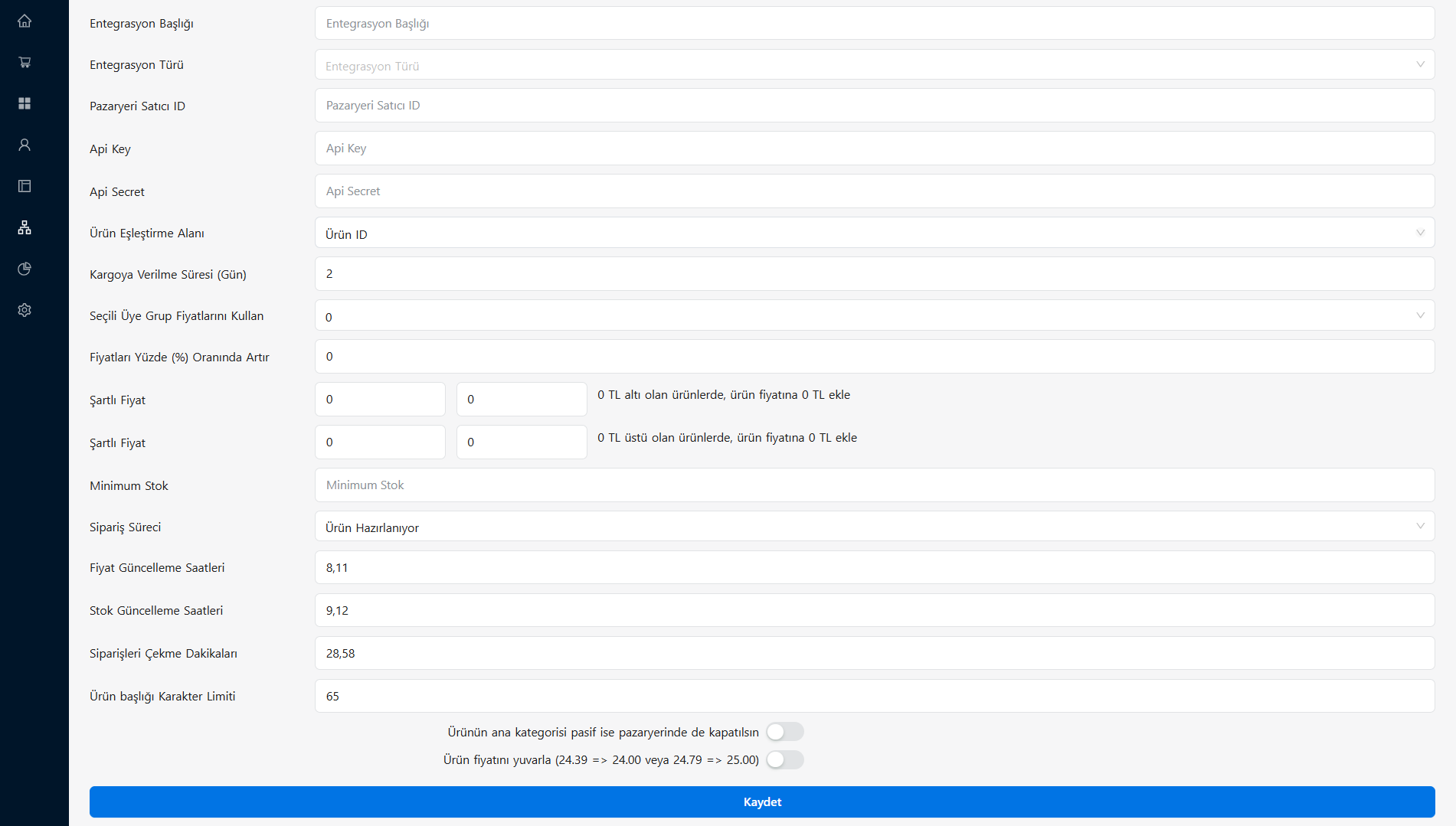 The general marketplace integration settings screen in the admin panel
⚠️ Important Note: When pricing your products for transfer to a marketplace, do not forget to add that marketplace's commission rates and shipping fees to your cost!
Trendyol Integration
Apply the following steps in order to integrate with Trendyol:
- If you do not have a seller account on Trendyol, open your store from the seller application screen.
- Go to the Account Information > Integration Information page in your Trendyol Seller Panel and create your API credentials.
- Copy the information on that screen into the relevant fields of the form under Integrations > Marketplace Integrations > Trendyol in your E-Ticaret Shop admin panel.
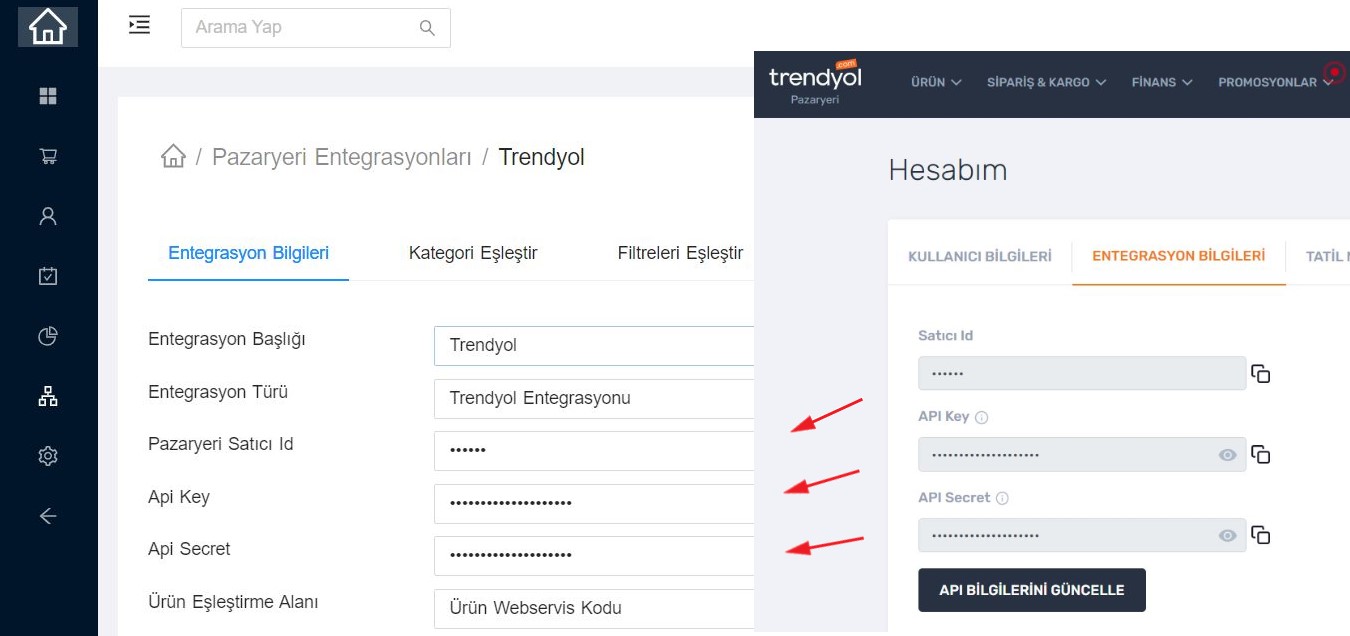 The section in the E-Ticaret Shop admin panel where Trendyol API information is saved
The meanings and uses of the settings on the Integration Information tab in your admin panel are explained in the table below:
Integration Settings Details
| Setting Title | What Does It Do? |
|---|---|
| Integration Title | A title that identifies the integration and is visible only to you and your authorized admins (e.g. "Trendyol Main Store"). |
| Integration Type | Select the marketplace you will integrate with from the selection box. |
| Marketplace Seller ID | Enter your "Seller ID" information from the marketplace panel into this field. |
| Api Key | Paste the "Api Key" information you obtained from your marketplace panel. |
| Api Secret | Paste the "Api Secret" information you obtained from your marketplace panel. |
| Product Matching Field | Select which unique code (Barcode, Stock Code, etc.) your products will be matched with the marketplace by. |
| Shipping Time (Days) | Define within how many days on average you will ship incoming orders. |
| Use Selected Member Group Prices | Choose this if you want to offer your products on the marketplace only at the special prices you defined for a particular member group. |
| Increase Prices by Percentage (%) | Lets you transfer your product prices to the marketplace increased by a certain percentage in order to cover commission costs. |
| Conditional Price | Used to increase the price of products below an amount you define by adding a fixed amount. (e.g. Add +10 TL to products under 50 TL.) |
| Conditional Price | Used to increase the price of products above an amount you define by adding a fixed amount. (e.g. Add +30 TL to products over 200 TL.) |
| Minimum Stock | When the product's stock falls below this number, the product is automatically closed to sale on the marketplace. |
| Order Process | Select the order status (e.g. "New Order") with which new orders from the marketplace will be taken into your site. (Order statuses are managed on the Order Processes page.) |
| Price Update Times | You can select multiple times of day at which your product prices on the marketplace will be synchronized automatically. |
| Stock Update Times | You can select multiple times of day at which your product stock on the marketplace will be synchronized automatically. |
| Order Retrieval Minutes | Define how often, in minutes, new orders on the marketplace are checked and transferred to your site. |
| Product Title Character Limit | You can set a maximum character limit to prevent product titles sent to the marketplace from being too long. |
| Close on the marketplace if the product's main category is inactive | Ensures that when you deactivate a main category on your site, all products under that category are also closed to sale on the marketplace. |
| Round the product price (24.39 => 24.00 or 24.79 => 25.00) | Rounds fractional prices to whole numbers before sending them to the marketplace. |