Cache Management
From the Settings > Cache screen, you can manage the temporary data (cache) held to improve the performance of your site. The system stores database queries and template files in memory so that pages load much faster. However, if the product, content or settings changes you make do not appear immediately on the site, you may need to clear the cache.
Cache Clearing Procedures
When you make an update to the site (adding a new product, theme change, price update, etc.), this data may not be reflected immediately on the front page. In such cases, you can clear the cache so that the system retrieves the most up-to-date data.
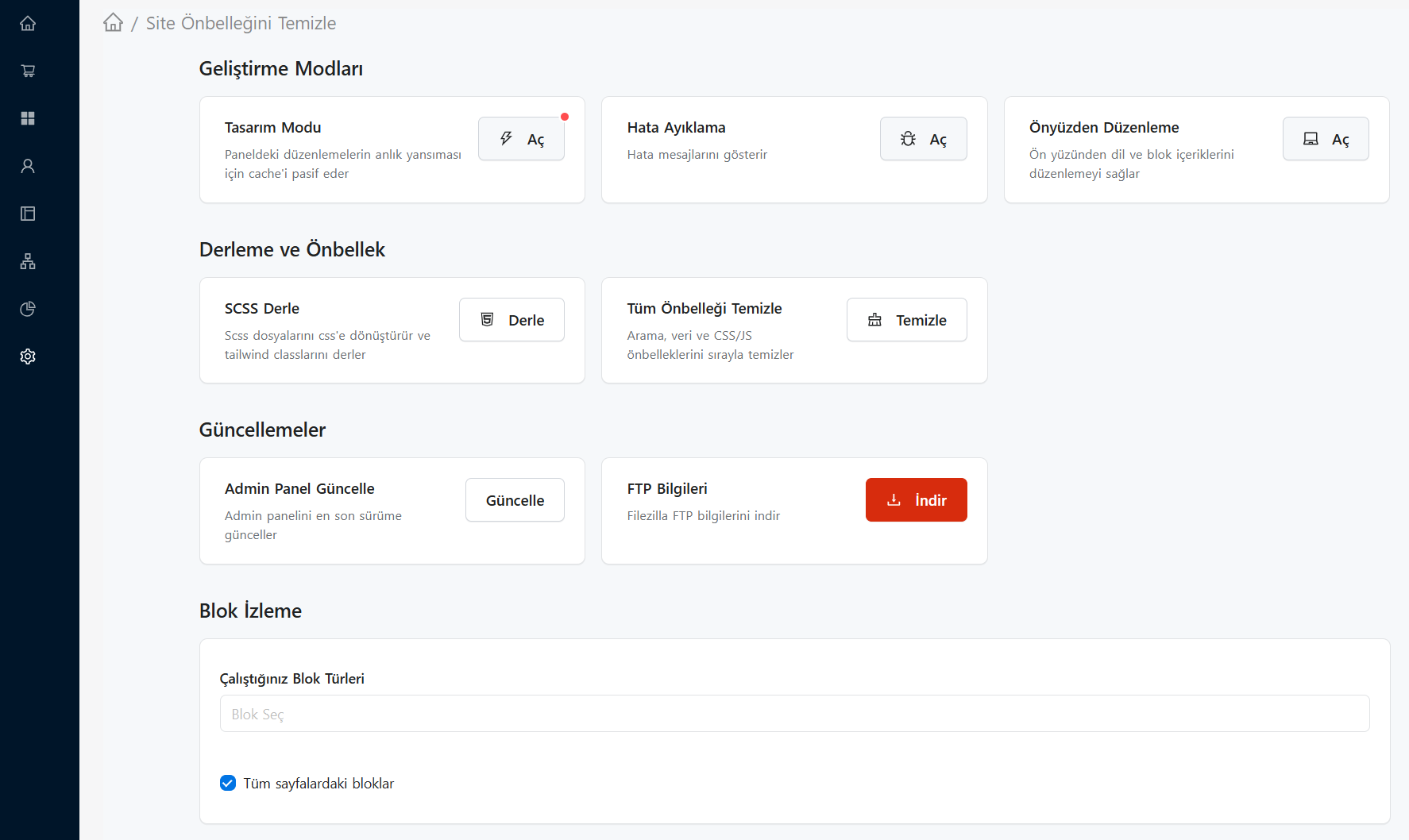
You can perform the following operations using the buttons on the screen:
- Clear All Cache: Clears all temporary memory on the site (database, products, categories, settings). It allows the system to re-retrieve all data.
- Smarty (Design) Clear Cache: Clears the cache of
.tplfiles only on the theme and template side. It is recommended to use it whenever you make a change to the design. - Clear Css/Js: It refreshes the versions of CSS and Javascript files kept on the browser side, ensuring that design changes are instantly reflected to visitors.
Design Mode (Developer Mode)
If you are actively working on your theme or blocks, clearing the cache every time can be tiring. In these cases, you can activate Design Mode.
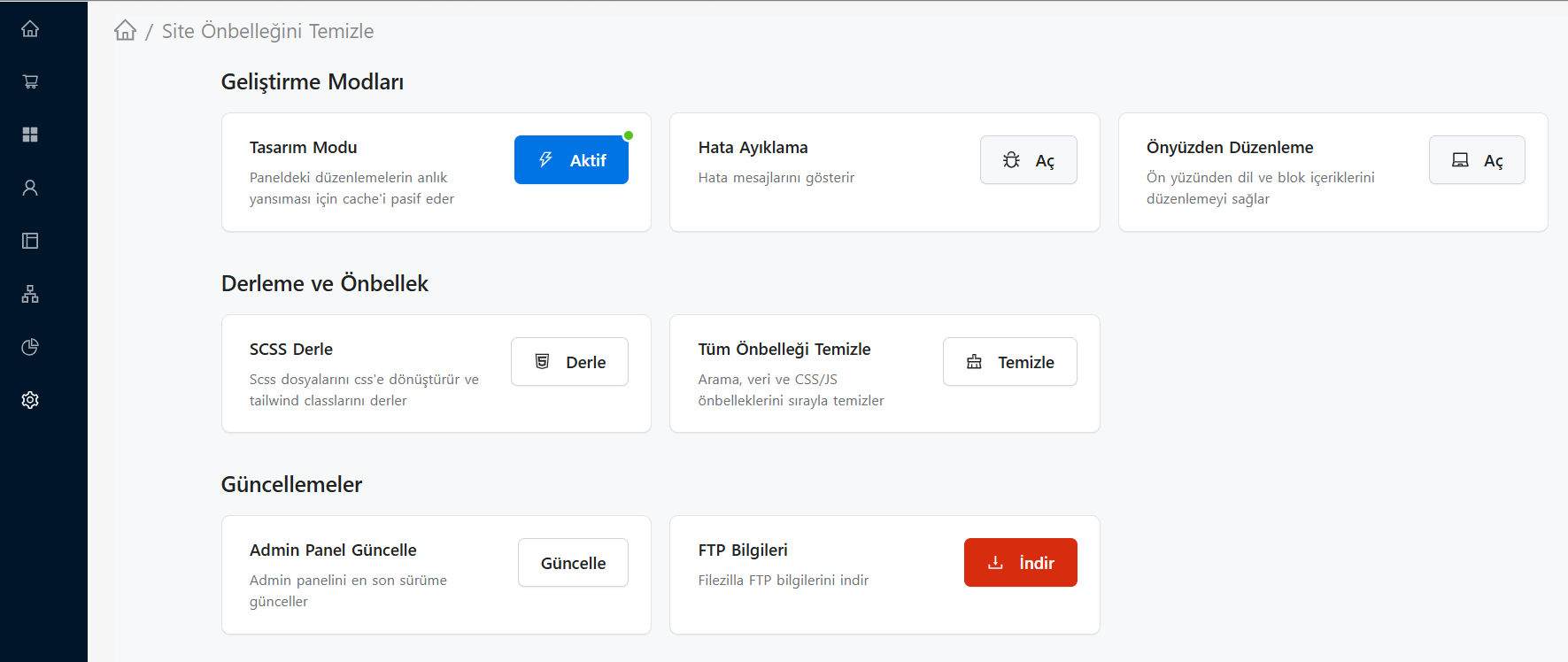
- Design Mode Active: When design mode is activated, the system stops caching completely. Every code change you make (TPL, CSS, JS) appears when you refresh the page.
- Warning: Design mode significantly slows down the site's loading speed. For this reason, after your development process is completed, make sure to turn it off.