Email Accounts
From this screen you can manage the corporate email addresses that will be used in the automatic communications your e-commerce site establishes with your customers (order confirmations, membership notifications, password resets, newsletter deliveries, etc.) and the technical infrastructure (SMTP) of those addresses.
Email Accounts List
This is the main screen where you can view and manage the email accounts defined in the system.
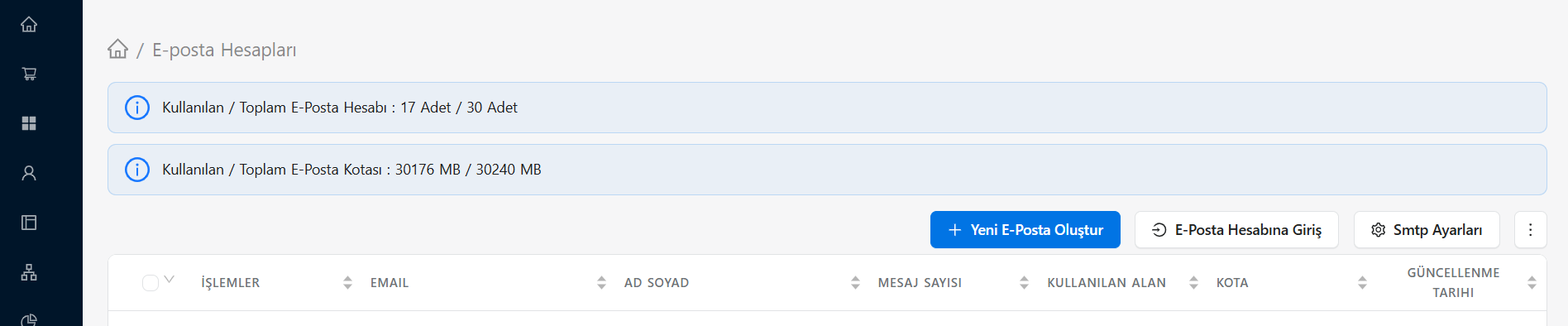
On this list you can see the status (active/inactive) of the email accounts and perform operations on existing accounts using the Edit (pencil) or Delete (trash) icons. With the Add New button in the top right corner you can define a new email address in the system.
Adding a New Email Account
You can use this section to add a new corporate account (e.g. info@companyname.com, sales@companyname.com) that will send mail through your site.
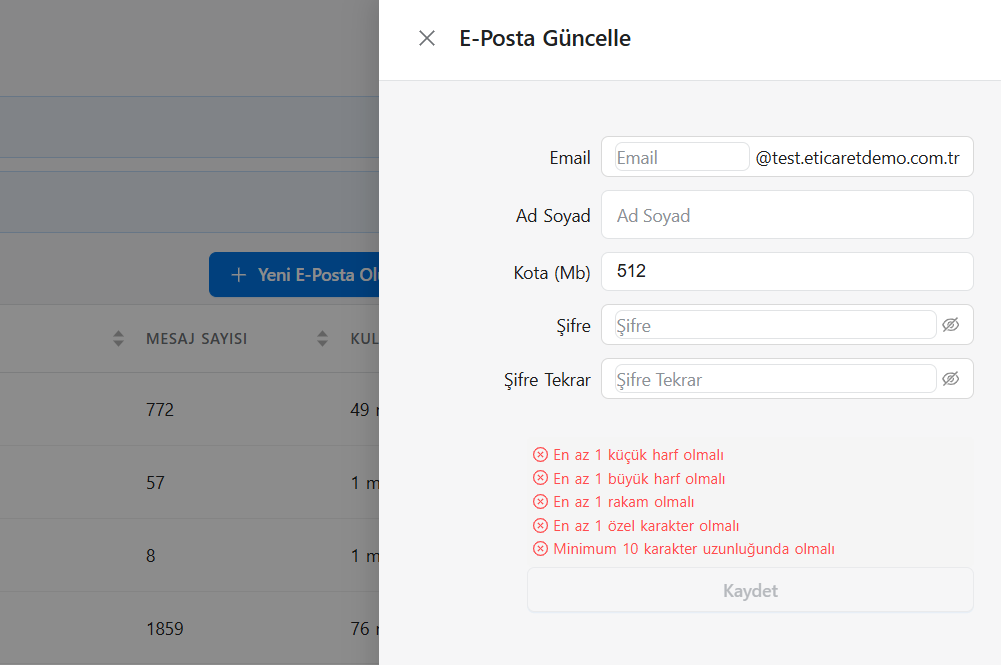
You should pay attention to the following fields when defining account information:
- Email: The primary email address that will appear in the "From" section of the mails sent to your customers.
- Sender Name: Determines the name under which the mails will appear in customers' inboxes (e.g. Company Name Customer Service).
- CC / BCC Email: If you want a copy of the sent mails to reach you or an authorized team, you can enter the authorized mail addresses in these fields. This way you can be aware of every mail sent from the system to the customer.
- Status: Determines whether the account you added is available for sending (active/inactive).
SMTP Connection Settings
For the email address you added to deliver mail successfully over the internet, the outgoing server (SMTP) infrastructure must be configured correctly. Mail sending errors are usually caused by omissions in this area.
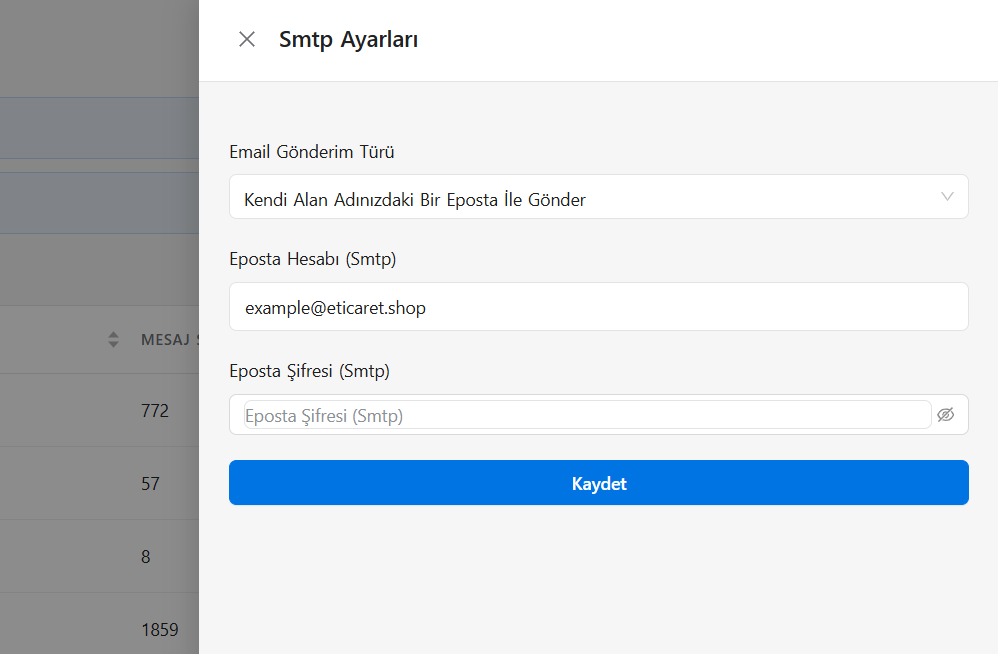
- Mail Server (Host): The SMTP server address of your email service provider (e.g. mail.companyname.com, smtp.gmail.com, smtp.yandex.com, etc.).
- Mail Port: The port number the email traffic will flow through. Depending on the security certificate used, it is usually entered as 465 (SSL), 587 (TLS), or 25 for unencrypted networks.
- Encryption: The connection protocol supported by your service provider (SSL, TLS, or None).
- Username: The full email address of the account that will be used for SMTP authentication.
- Password: The password of your email account. (Important: If you use structures such as Google Workspace or Yandex Corporate, you will need to enter the 16-digit App Password generated by that service instead of your personal password.)
📧 Send a Test Message
After saving all settings and completing your SMTP connection, be sure to check whether the system can send mail by creating a test order or using the contact form. If you get an error, first confirm your Port, Security Type, and Password details with your mail provider.