Picture Settings
Settings > All Settings > Appearance & Content > Image Settings screen is the section where you manage the sizing, quality, format conversions and watermark options of the images you upload to your site.
Properly configured image settings not only ensure that your site loads quickly (increases your SEO score) but also helps your images appear clear and proportionate.
General Image Format and Quality
You can maximize your page opening speed with new generation image formats and compression rates.
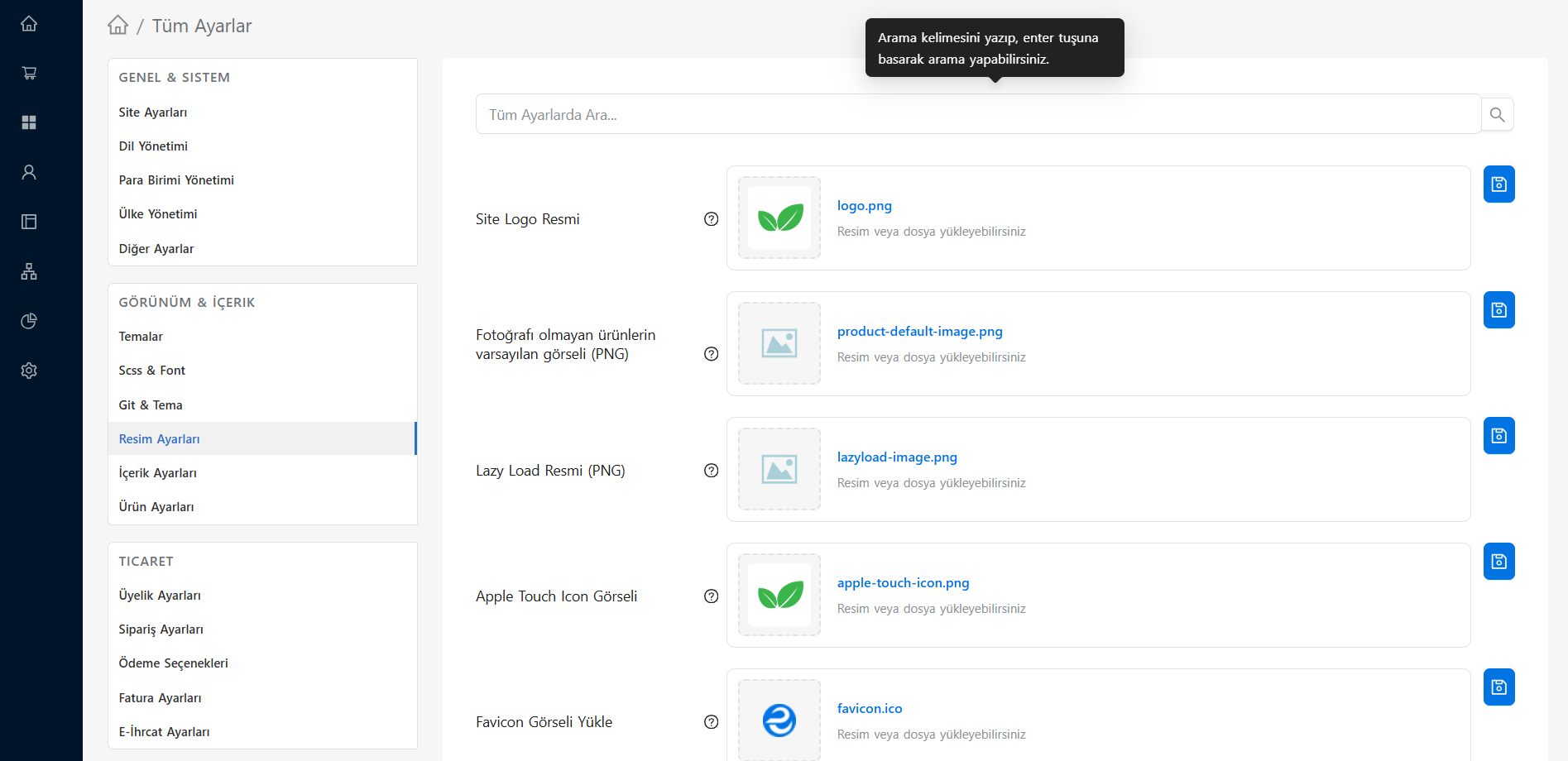
- Default Format: Determines which format the images uploaded to the system will be automatically converted to (Ex:
WebP,JPEG,PNG). Using WebP is highly recommended as it greatly reduces file size without sacrificing quality. - Compression Quality: Determines the quality ratio of automatically reduced images (Usually 80% or 85% is the ideal value in terms of quality/size).
- Automatic Optimization: Saves server space by compressing images in the background.
Resizing and Watermarking
It is used to create image sizes suitable for different screen types and to protect your product images.
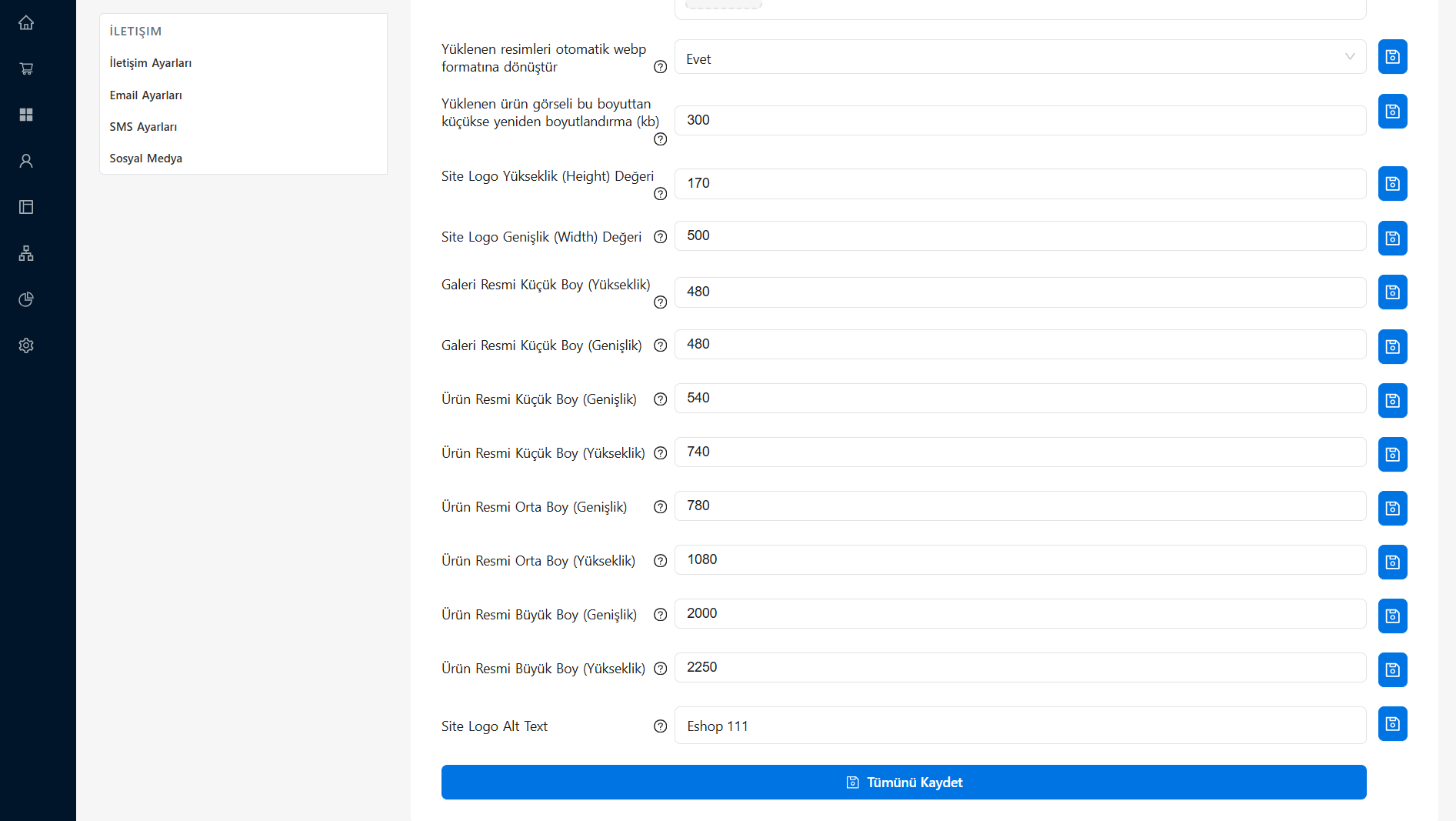
Image Dimensions
You can define image width and height values for different areas such as catalog, product detail, basket and thumbnail.
- When a large original image is loaded into the system, the system automatically creates different variations by looking at these settings.
- Thus, page speed is maintained by preventing a huge image from being loaded in a small area.
Adding a Watermark
To prevent unauthorized use of your product images on other sites, you can automatically add your translucent logo or text on the images.
- Watermark Status: Controlled as On/Off.
- Position: You can determine where the watermark will appear on the image (Ex: Exact Center, Bottom Right, Top Left).
- Opacity: You can prevent the added logo from getting in the way of the main image by adjusting how transparent it will be.