Email Accounts
You can easily manage your e-mails by installing your domain e-mail addresses on your computer. Before installation, make sure you have your email address and password with you.
Which Installation Should I Choose? (IMAP vs POP3)
When setting up e-mail, you can see IMAP or POP3 options as "Account Type". Make the right choice according to your needs:
| Feature | IMAP (Recommended) | POP3 (Archiving Focused) |
|---|---|---|
| Place of Use | Multiple devices (Phone + PC) | A single host |
| Where is Email Stored? | On the server | On your computer (Local) |
| Against Server Problems | Sensitive (If the server goes down, emails will be lost) | Secure (Mailer on your computer) |
| Synchronization | Yes (Looks the same everywhere) | None (Mailer on device only) |
Our advice:
- If you want to access your e-mails from both your phone and computer: Definitely choose IMAP.
- If you say "Keep my emails safe on my computer, I don't trust the server, my old emails should not be deleted": Choose POP3.
Attention: If You Are Using POP3!
When setting up POP3, if you select the "Leave a copy of messages on the server" option in your e-mail application, the e-mails will be stored both on the server and on your computer. If you just want it to stay on your computer, do not tick this option.
Important Notice
If you use POP3, you are now responsible for your emails. Make sure to make regular backups of your computer (on an external disk or in the cloud) in case your computer malfunctions.
1. Windows Mail Setup
You can add your email accounts using Windows' built-in "Mail" application.
Launch the Mail App: If it is not installed, open the Microsoft Store and install it for free by searching for “Mail” or “Mail and Calendar”.
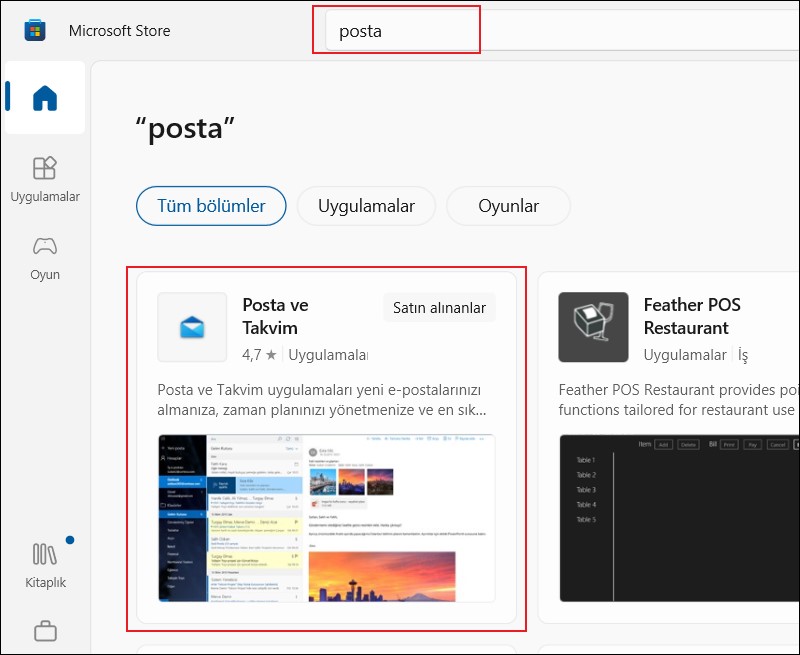
Adding Account: Open the app and click Add Account.
Select Account Type: In the window that opens, select "Other account (POP, IMAP)". (Note: The Office 365 or Exchange option may often fail for custom domain emails.)
Enter Information: Enter your email address and password.
If Manual Installation is Required
If the application cannot complete the automatic installation, enter the information manually using the "Manual Settings" table below.
Manual Settings (Windows Mail)
If automatic installation fails, configure account settings as follows:
| Area | Information |
|---|---|
| Incoming email server | mail.eticaret.shop |
| Account type | IMAP (Recommended) |
| Outgoing (SMTP) server | mail.eticaret.shop |
| Use SSL | Must be checked |
| Port | 993 (IMAP) / 465 (SMTP) |
2. Microsoft Outlook Settings
Outlook offers a more advanced structure for professional use. For installation, follow the path Advanced Setup > IMAP/POP3.
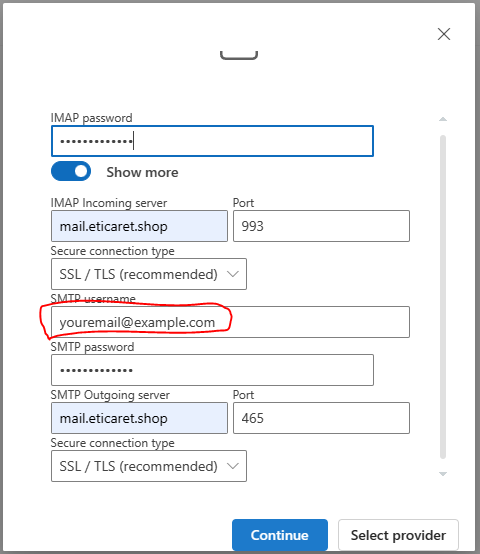
Server Information
Use the following values during manual installation:
- Incoming (IMAP):
mail.eticaret.shop| Port:993| Encryption:SSL - Incoming (POP3):
mail.eticaret.shop| Port:995| Encryption:SSL - Outgoing (SMTP):
mail.eticaret.shop| Port:465| Encryption:SSL
Advanced
More detailed technical documentsfrom the link hereyou can reach.
Attention
If you are getting an error despite all the settings:
- Verify that your password is correct by trying it on
webmail.eticaret.shop. - Try installing on a different internet network or computer.
3. Installing Mozilla Thunderbird
Thunderbird is a very reliable option for your email accounts thanks to its open source nature and advanced management features.
- Launch Application: Open Thunderbird.
- Account Setup: Go to the setup screen at first startup or by following Account Settings > Account Transactions > Add Mail Account.
- Enter Information: Type your name, email address and password.
- Manual Configuration: Thunderbird will try to find the server settings automatically. However, since you have your own custom domain name (eticaret.shop), you will need to click on the "Manual configuration" button.
Server Settings
On the manual configuration screen, carefully enter the following information:
| Setting | Incoming (IMAP/POP3) | Outgoing (SMTP) |
|---|---|---|
| Server Name | mail.eticaret.shop | mail.eticaret.shop |
| Port | 993 (IMAP) or 995 (POP3) | 465 |
| Connection Security | SSL/TLS | SSL/TLS |
| Authentication | Normal password | Normal password |
- Username: Type your entire email address (example:
info@eticaret.shop).
- Complete: After entering the settings, press the "Retest" button. After the settings are verified, complete the installation by clicking the "Done" button.
Clue
If you are using POP3, do not forget to check the "Leave a copy of messages on the server" option in Account Settings > Server Settings so that Thunderbird does not delete emails from the server.
Attention
If you receive "Connection security" or "Port" errors during installation, make sure the values exactly match the table above. In particular, you should make sure that the SSL/TLS option is selected.