Order Return and Cancellation
All requests made by customers who shop on the site to return products or cancel orders that have not yet been shipped fall into the Order Cancellation/Return menu. It is important to respond to requests in this area in a timely manner to ensure customer satisfaction.
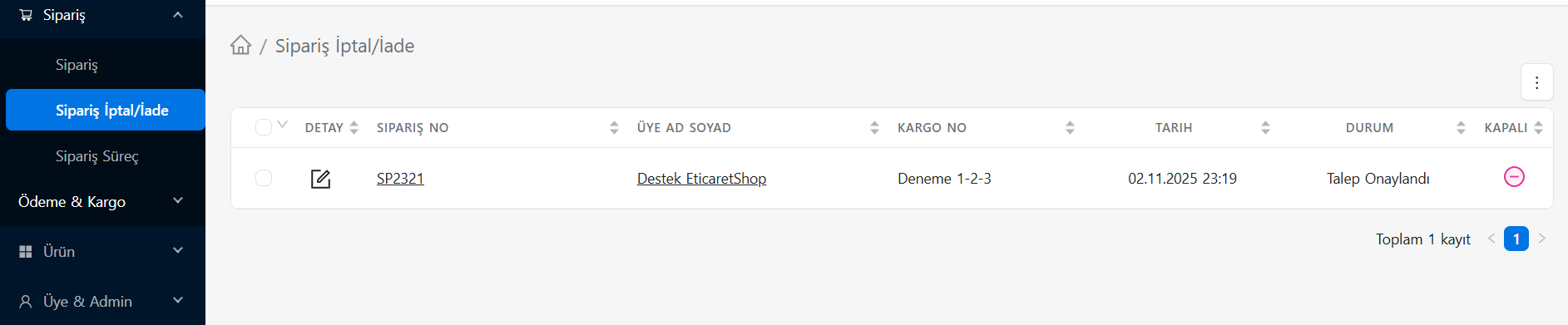
Cancellation/Return List
This screen provides a summary of all pending or settled refund and cancellation requests.
- DETAIL (Edit Icon): This is the button you need to click to enter the content of the request opened by the relevant customer and take action.
- STATUS: Shows the current progress of the request ("Request Approved", "Under Review", etc.).
- CLOSED: It is a sign indicating whether the relevant request has been completely terminated by the administrators. (Minus/Minus red circle icon indicates that this process has been closed/concluded).
Request Details and Management
When you click on the edit icon of an order from the list, you will see a comprehensive management panel consisting of three different tabs: Detail, Messages and Product.
1. Detail Tab
It is the place where the general status of the request and the cargo process are managed.
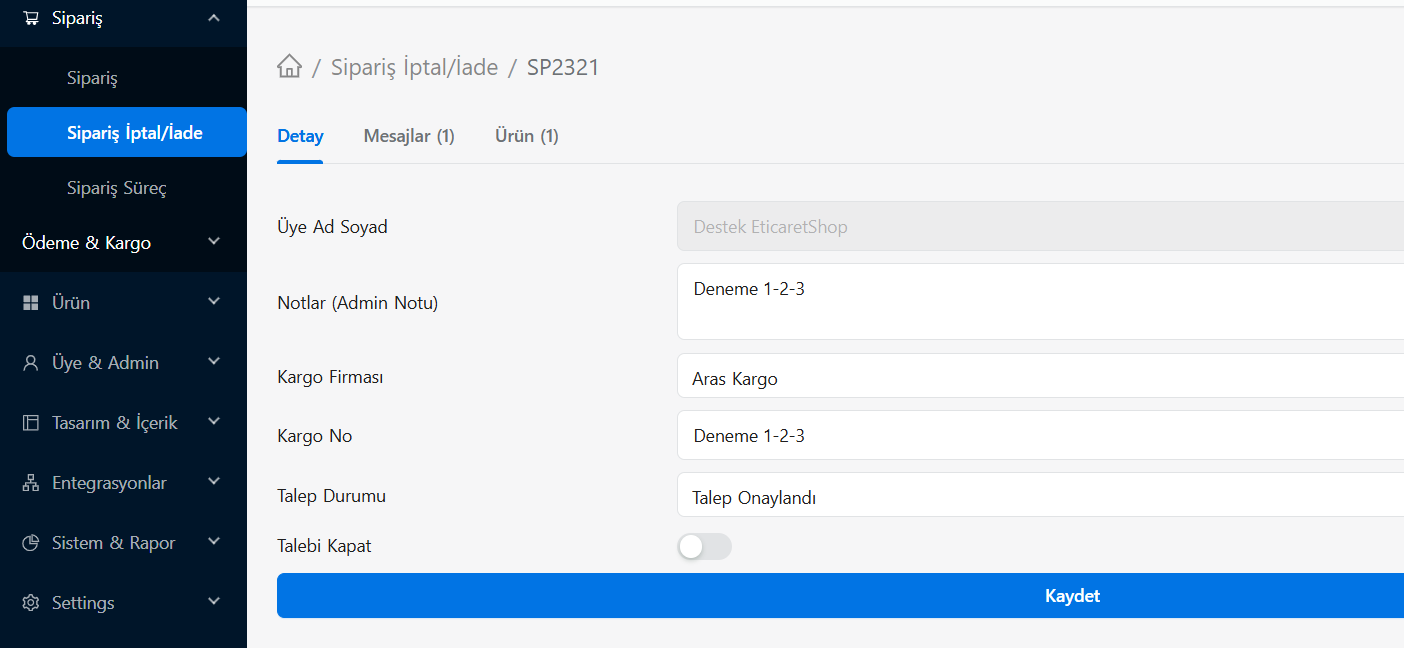
- Notes (Admin Note): You can make notes that the customer cannot see, only other managers within the company can see (Ex: "The product was broken in cargo, it will be refunded").
- Cargo Company and Cargo Number: If the customer sends the product back to you with a return shipping code, this is the data entered so that you can follow the process.
- Request Status: Allows you to change the stage of the request ("Request Approved", "Rejected", etc.).
- Close the Request: After the problem is solved and transactions such as a refund are made, if you activate this button and press the 'Save' button, the system will send/close this request to the archive.
2. Messages Tab
This is the communication screen where you can see and respond to the reason given to you by the customer for cancellation/refund (Ex: "I want to cancel this order.").
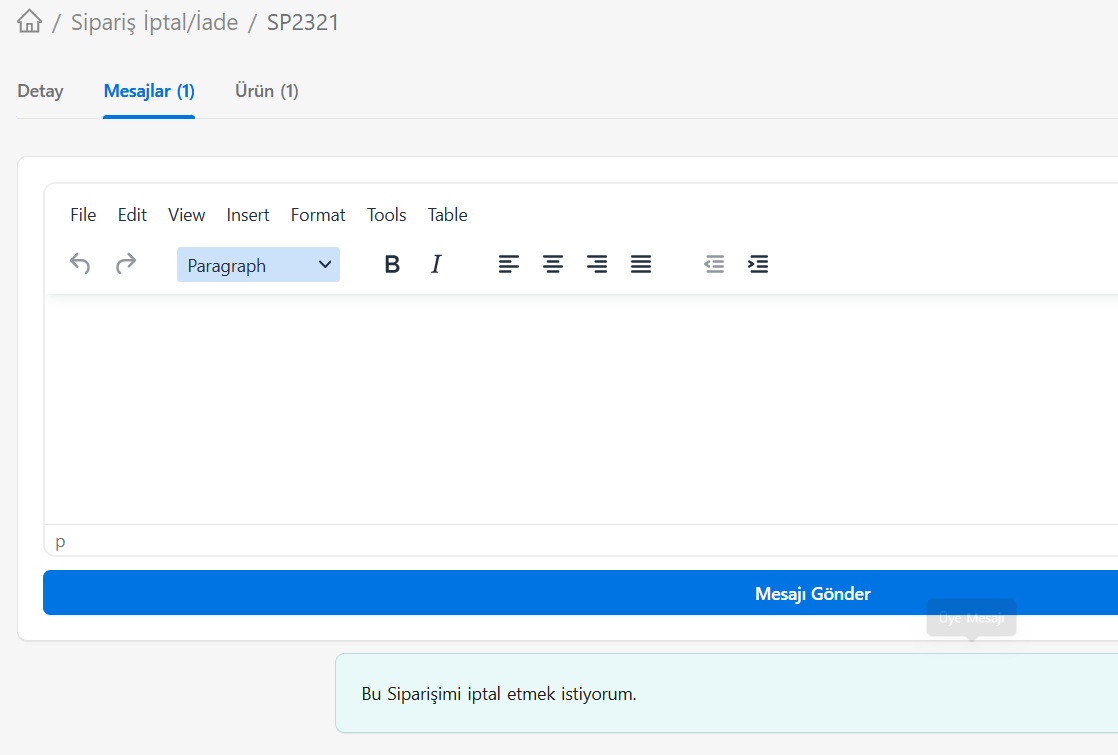
- You can correspond with the customer about the process directly through the system. You can add your comments using the rich text editor and send a notification to the customer with the Send Message button.
3. Product Tab
This is the section where you examine how many of the products in that order the customer wants to return.
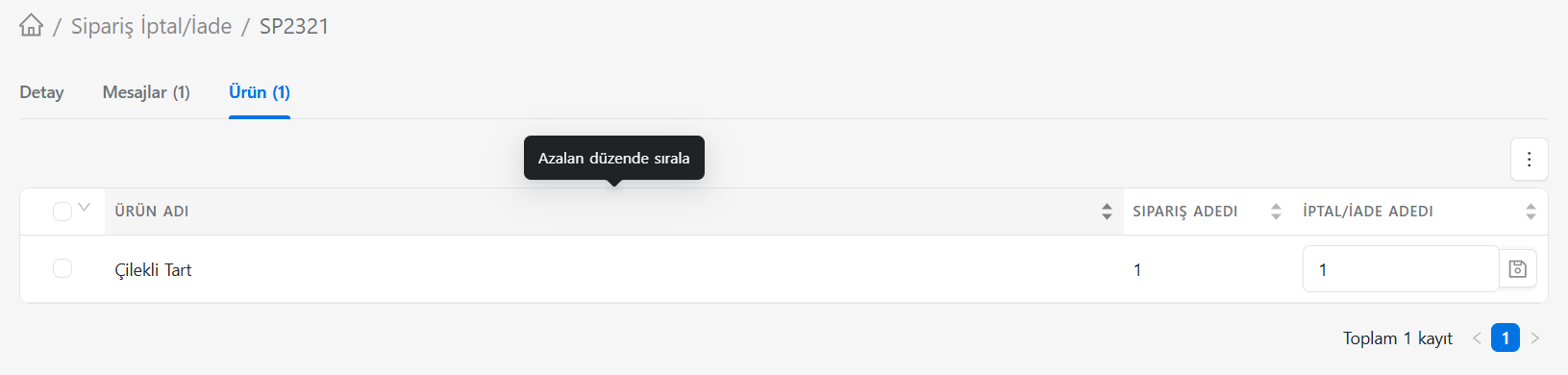
- Order Quantity: Shows the total number of units the user purchased of that product in the original order.
- Cancellation/Return Quantity: If you want to return not the entire order but, for example, 1 out of 3 purchased products, you can clarify the quantity in this field and click on the [Save Icon] next to it to process the stock and return amount into the system.