Membership Settings
This is the main settings screen where you can manage the membership approval processes of customers who register with your store (individual customers or dealers), the address-adding rules, and guest shopping permissions.
To reach this page, follow the steps Settings > Commerce > Membership Settings from the left menu in your admin panel.
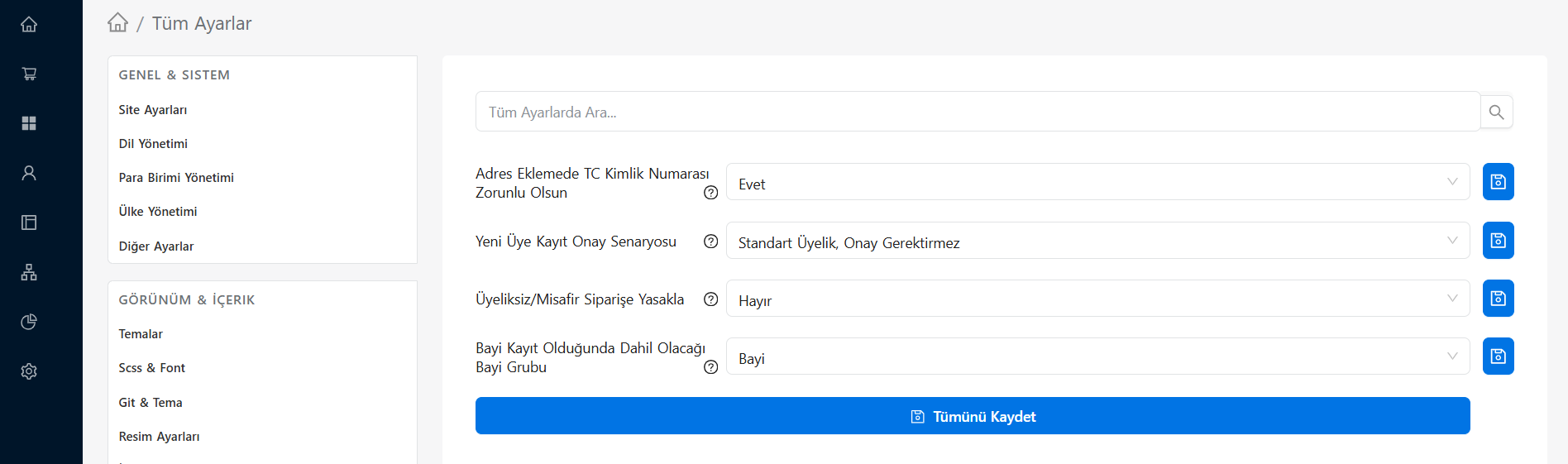 The Membership Settings section in the E-Ticaret Shop admin panel
In the table below you can review in detail what the membership scenarios and options on the page mean:
Setting Details
| Setting Title | Description and Usage |
|---|---|
| Require National ID Number When Adding an Address | Determines whether entering a national ID number is mandatory ("Yes") or optional ("No") when members define a new address from their profile panel or at the payment step. (It is generally preferred to set this to "Yes" for accounting and e-invoice requirements.) |
| New Member Registration Approval Scenario | The field where you select whether a user newly registering on your site becomes an active member directly (e.g. "Standard Membership, No Approval Required"), or is subject to SMS/email verification or manual administrator approval. |
| Block Guest/Non-Member Orders | When set to "Yes", customers must register and sign in to your site in order to shop. If "No" is selected, users can complete their cart and place an order without becoming members (as guests). |
| Dealer Group a Dealer Joins on Registration | If you use the B2B (wholesale/dealer) infrastructure, you determine which customer group (e.g. "Dealer") a user who registers by filling in the dealer application form is automatically assigned to by the system after approval. |
💡 Tip: In retail (B2C) sales it is recommended to leave the "Block Guest/Non-Member Orders" option set to "No" in order to shorten the visitors' purchasing process and reduce cart abandonment rates. Do not forget to press the "Save All" button to apply the settings you made to the system.