Update Version
You can track and update the versions of the main core system of your e-commerce infrastructure from the Settings > Update Version screen. EticaretShop infrastructure constantly gains new features and security/performance improvements.
Version Tracking and Update Process
You can see the current version of your system on this screen, and if a new version has been released, you can upgrade your site to the most up-to-date infrastructure with a single click.
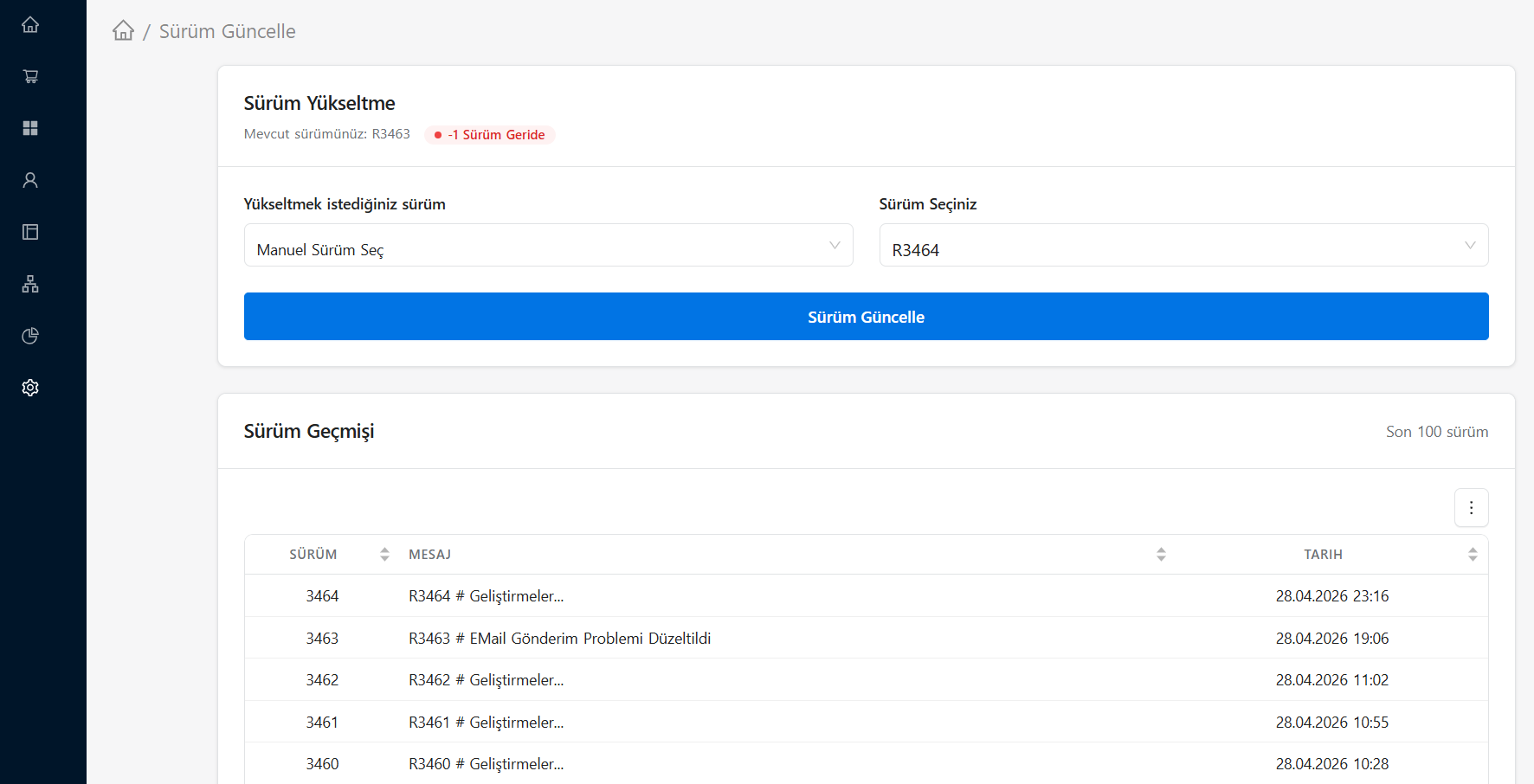
Update Steps
- Update Check: When you open the page, the system automatically checks if there is a new version. If you see the "Your system is up to date" warning, you do not need to take any action.
- New Version Notification: If a new version is available, you can see a brief summary (Release Notes) of the innovations, bug fixes and improved features that come with this version.
- Update Process: You can start the process by clicking the "Update" or "Upgrade System" button. The update process may take approximately 1-2 minutes. It is important that you do not close the tab during this time.
Important Notice
Since the infrastructure (Core) update process renews the basic files of the system, there may be seconds of interruption on the site during the process. For this reason, it is recommended that you avoid making updates during your site's peak traffic hours (for example, in the evening or during campaign periods). Night hours are the best time for this process.
Theme vs. Difference Between System Update
- Theme Update (done from the
Appearance & Content > Git & Themepage) only updates your site's visual design files and block templates. - Version Update (Done from this screen) updates the invisible main engine codes (Core PHP infrastructure) of the project, such as payment infrastructures, order system, management panel.