Themes
Settings > All Settings > Appearance & Content > Themes screen is the main section where you manage the design, page templates and backups of your e-commerce or corporate site. Each theme is an integrated design suite that packages block templates (TPL/SCSS/JS) and page layouts together.
Take a Backup Before Installation
Theme installations may change existing templates and page layouts. Be sure to take a backup before doing anything.
Theme Gallery and Template Structure
The themes in our system are divided into two main groups according to their functions: E-commerce and Corporate. By default the client demo can be installed ready to use with any of these themes. If you have a different need other than the ready-made designs, we can also create a custom design from scratch, completely in line with your wishes and budget.
The page lists the card view of available themes. Each card includes:
- Theme preview image
- Theme name and brief description
- Preview button (visible on hover)
- Install button
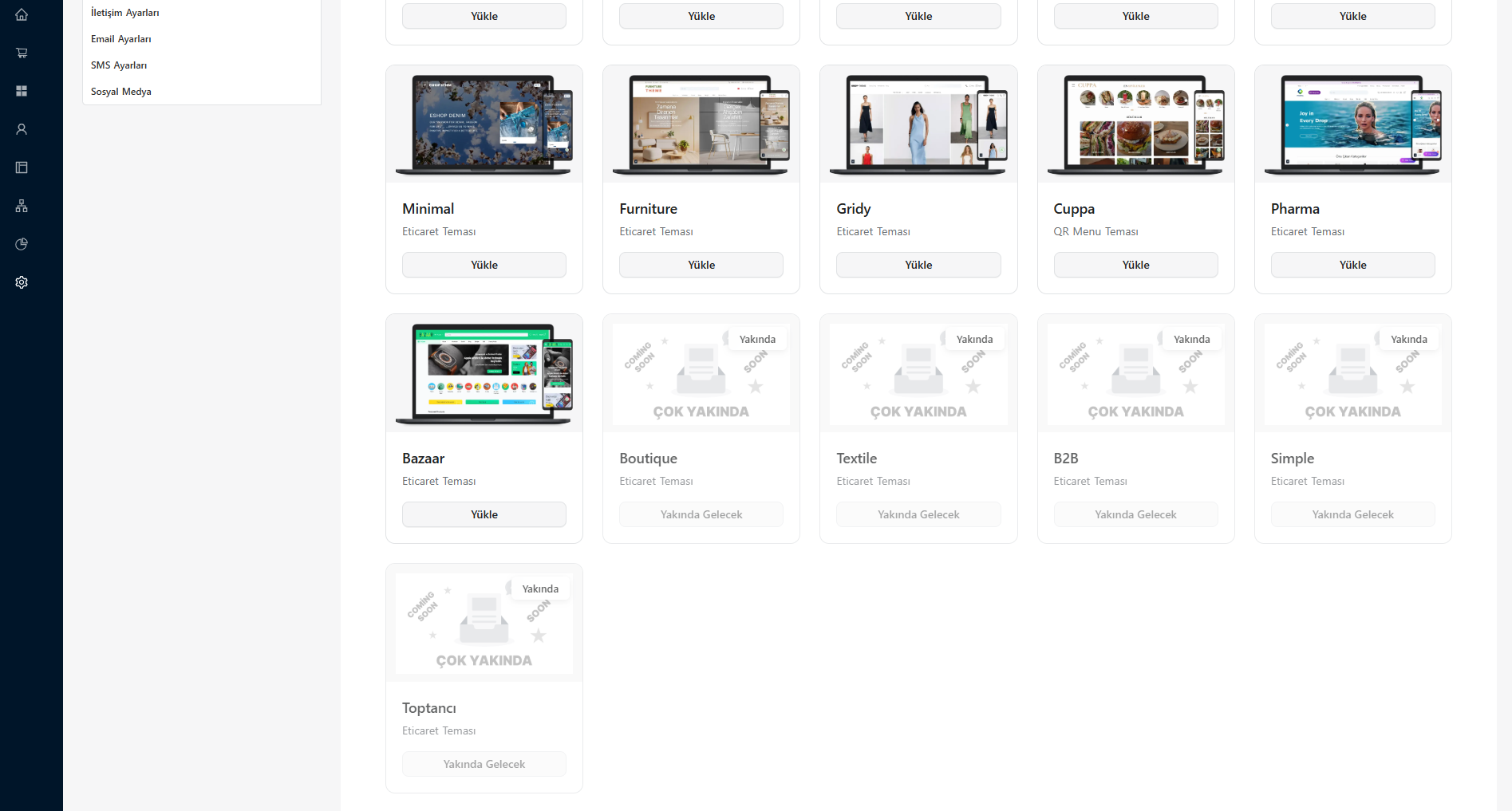
Themes with the Coming Soon badge are not yet available.
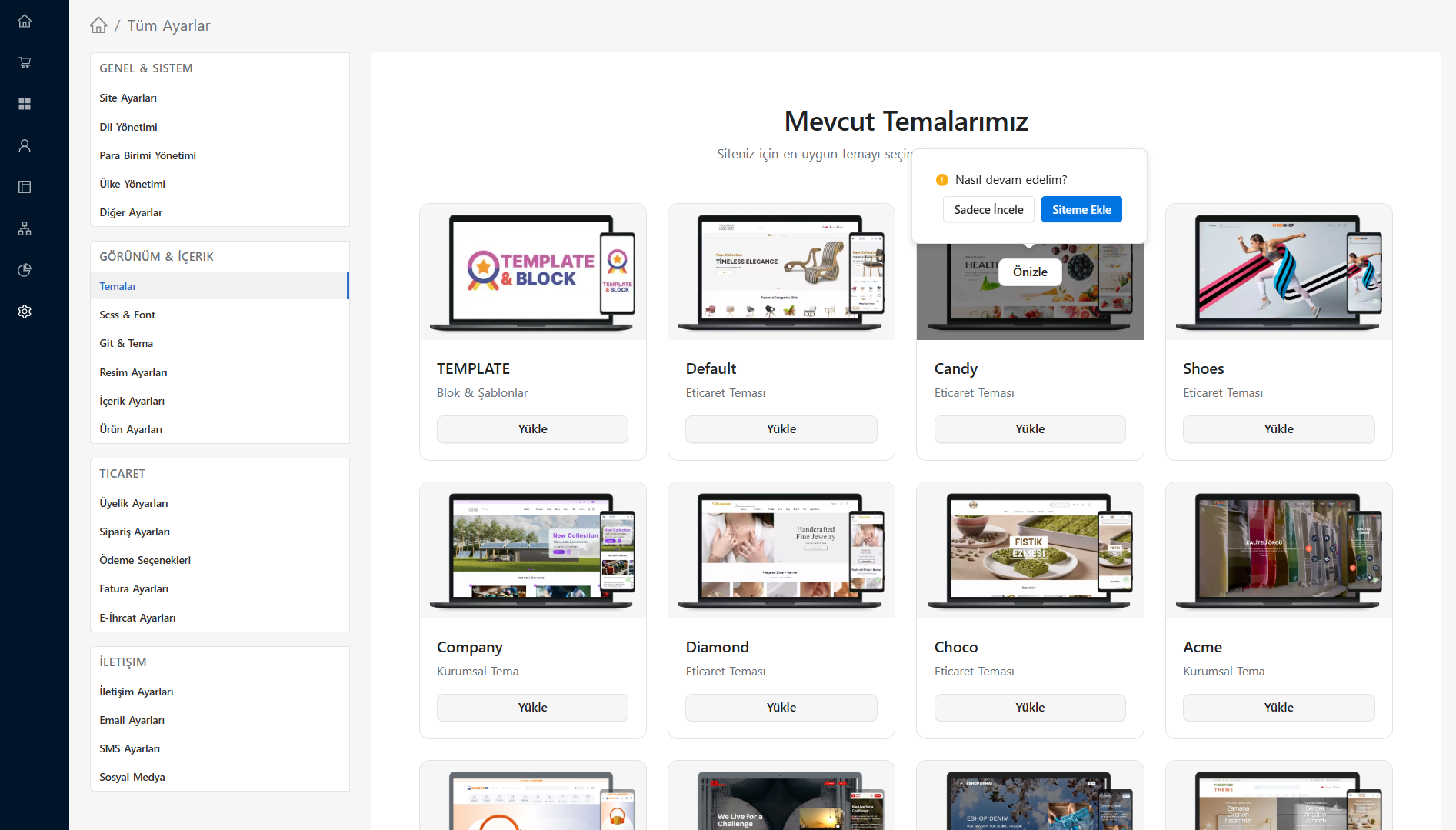
Available Themes
| Theme | Genre |
|---|---|
| TEMPLATE | Template Market |
| Default | E-commerce |
| Candy | E-commerce |
| Shoes | E-commerce |
| Company | Corporate |
| Diamond | E-commerce |
| Choco | E-commerce |
| Agency | Agency |
| Acme | Corporate |
| Computer | E-commerce |
| Video | Corporate |
| Minimal | E-commerce |
| Furniture | E-commerce |
| Gridy | E-commerce |
| Cuppa | QR Menu |
| Pharma | E-commerce |
| Bazaar | E-commerce |
Preview — Add to My Site
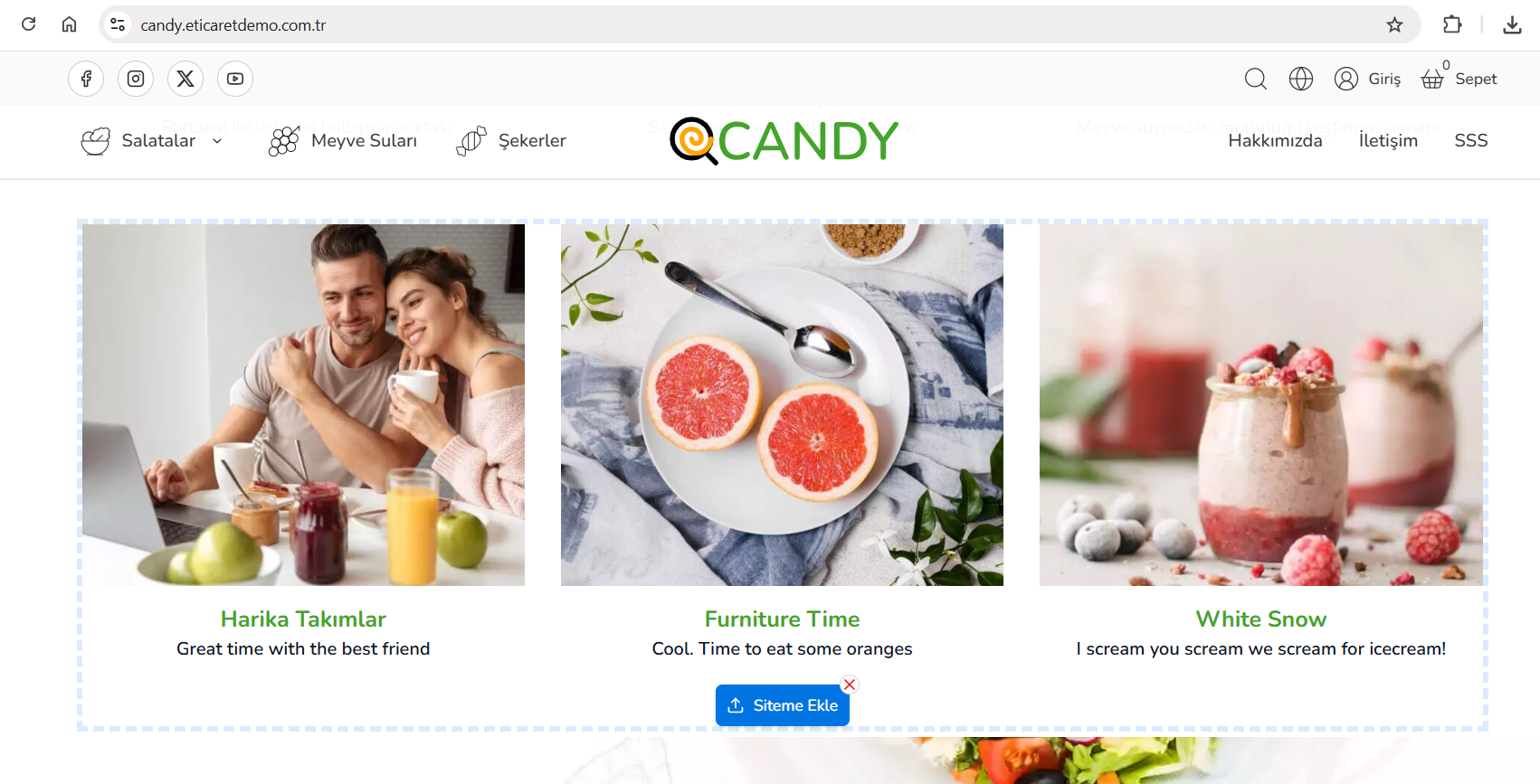
You can manage your design flexibly. When you click on the Preview button that appears when hovering over a theme, you will be presented with two options:
Just Review
Opens the demo site in a new tab. It does not affect your existing site in any way; It just lets you examine how that theme looks.
Add to My Site
Opens the demo site with your current site's data. You can add the block templates you see while browsing through the demo directly to any page of your own site:
- Find the section you like on the demo site.
- Click on the "Add to My Page" button on the relevant block.
- Choose which page and which block you want to add before/after.
- The block is instantly added to your page along with its settings.
This feature allows you to get the parts you want one by one, selectively instead of activating the theme in bulk.
TEMPLATE Theme
TEMPLATE theme is a template marketplace. It is not a single theme, but contains block templates of all different themes. You can add any block part you want to your page with "Preview → Add to My Site". There are no "Activate" and "Reset" options for TEMPLATE — only file downloads are available.
Install — 3 Options
When the Install button is clicked, a panel opens. In this panel you choose how to apply the theme. The risk level increases from top to bottom:
Option 1 — Download Theme Files Only
Risk: Low
It downloads the TPL, SCSS and JS files of the selected theme to the server. Existing template assignments, page layouts, and block settings are not changed.
- The files are downloaded, but no blocks use them automatically.
- You can later assign them to the block you want one by one from Block Management.
- It will not harm the existing working site.
- Available for all themes (including TEMPLATE).
Option 2 — Download and Activate Theme Files
Risk: Medium–High ⚠️
It downloads the theme files and automatically updates the block template assignments on the current site if the relevant theme has a custom template for that block.
- Blocks that have a special template in the theme are passed to this template.
- Your existing customized block templates may vary.
- The page layout (row/column structure) is preserved, only the template files are updated.
WARNING
If this option is used on an existing site, your customized templates may be overwritten. Recommended only for newly installed sites or if a backup has been made before the process.
Option 3 — Reset and Rebuild Site Frontend
Risk: Very High 🚨
It is the most comprehensive and dangerous option. It creates an exact copy of the demo site of the selected theme on your current site.
- Resets: Row and column layout of all pages, all block template assignments and settings (page structure becomes exactly the same as the demo).
- Protected: Dynamic data from the database (products, orders, members, etc.) and customized language variables.
Use Only on New Sites
Using this option on an existing site all your design customizations will be irreversibly deleted. Definitely only use it on newly created sites that have not yet been customized.
Theme Backup and Restore
It is very important to secure your data when making adjustments to your theme. At the bottom of the upload panel is the theme backup system. It is highly recommended to take a backup before each theme operation.
Get New Backup
You can create a backup of your theme at any time before making any edits or code changes to the design. The Take New Backup button on the panel takes an instant backup of existing template assignments and page layouts.
Reserve List
| Column | Description |
|---|---|
| Admin | Admin user who took the backup |
| Theme | During which theme process |
| Date | Backup creation date and time |
| Transactions | Restore or download |
Returning from Backup (Restore)
If there is a visual or structural deterioration on the site, you can easily return it to its problem-free state by selecting it from the backup list. Clicking the restore icon to the right of a backup will prompt for confirmation. If approved, the site immediately returns to the current state.
Download Theme Files / Backup
You can download the backup as ZIP/JSON to your local computer. Useful for moving to a different environment, long-term archiving, or editing on the local computer.
Recommended Usage Flow
New Site — If You Want to Fully Apply the Theme
- Navigate the theme with Preview → Just Review.
- Get New Backup (precautionary measure).
- Apply the full theme with Option 3 (Reset).
- Make fine adjustments in Block Management.
New Site — If You Want to Apply Templates, Maintain Page Layout
- Get New Backup.
- Update template assignments with Option 2 (Activate).
Existing Site — If You Want to Add Specific Blocks
- Enter the demo with Preview → Add to My Site.
- Select your target page with "Add to My Page" on the block you like.
- Nothing on your existing site will be broken.
Current Site — If You Just Want to Download Files
- Pull files with Option 1 (Download Only).
- In Block Management, go to the relevant block and change the template manually.