Invoice Settings
This is the area where you can configure your store's e-invoice and pre-accounting integrations (e.g. Paraşüt, BirFatura). Thanks to these integrations you can automate the invoicing process for orders coming from your site and save a great deal of time.
To reach this page, follow the steps Settings > Commerce > Invoice Settings from the left menu in your admin panel.
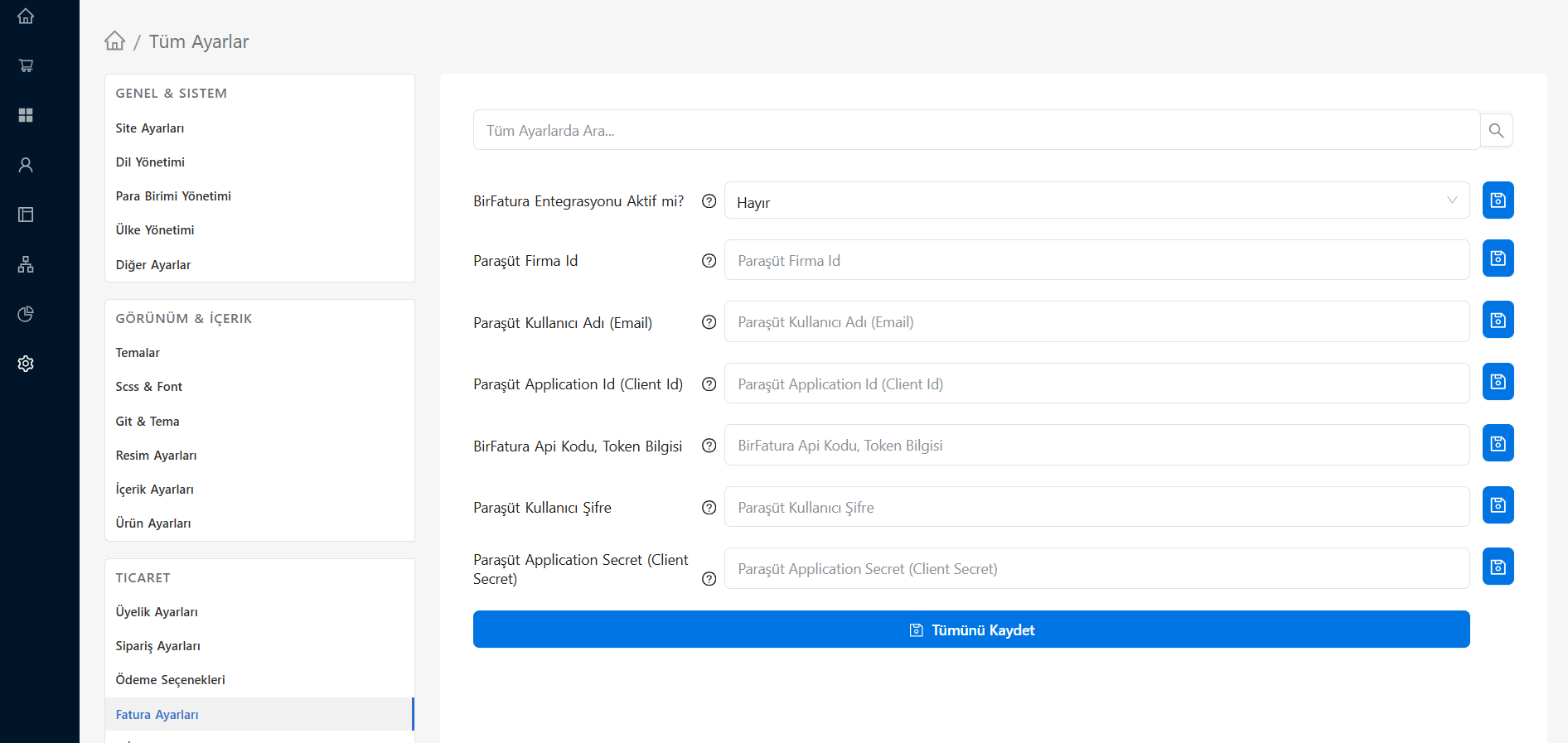 The Invoice Settings management screen in the E-Ticaret Shop admin panel
In the table below you can review the details of the API fields you need to fill in for e-invoice integration:
Setting Details
| Setting Title | Description and Usage |
|---|---|
| Is BirFatura Integration Active? | Set this option ("Yes" / "No") to enable or disable BirFatura integration in your store. |
| Paraşüt Company Id | The identity number (ID) of your company in the system for your Paraşüt account. You can obtain it from your Paraşüt panel. |
| Paraşüt Username (Email) | The registered email address you use when signing in to the Paraşüt pre-accounting system. |
| Paraşüt Application Id (Client Id) | The ID (Client ID) information of the application created/defined for Paraşüt API access. |
| BirFatura Api Code, Token Information | The API/Token code you obtain from the integrations section of your BirFatura panel. It enables the two systems to communicate. |
| Paraşüt User Password | The login password you use when signing in to your Paraşüt account. |
| Paraşüt Application Secret (Client Secret) | The secret authentication key provided for Paraşüt API access. Do not share this information with anyone, for your own security. |
💡 Tip: To obtain the required API or Token information, you can review the "Applications", "Integrations", or "Developer" sections in the Paraşüt or BirFatura panels. After copying the information and pasting it into the relevant fields, do not forget to press the "Save All" button at the very bottom of the page.