Order Process
The status steps that orders go through are managed on the Order > Order Process screen. You can follow all order statuses appropriate to the operational flow of your business from this list.
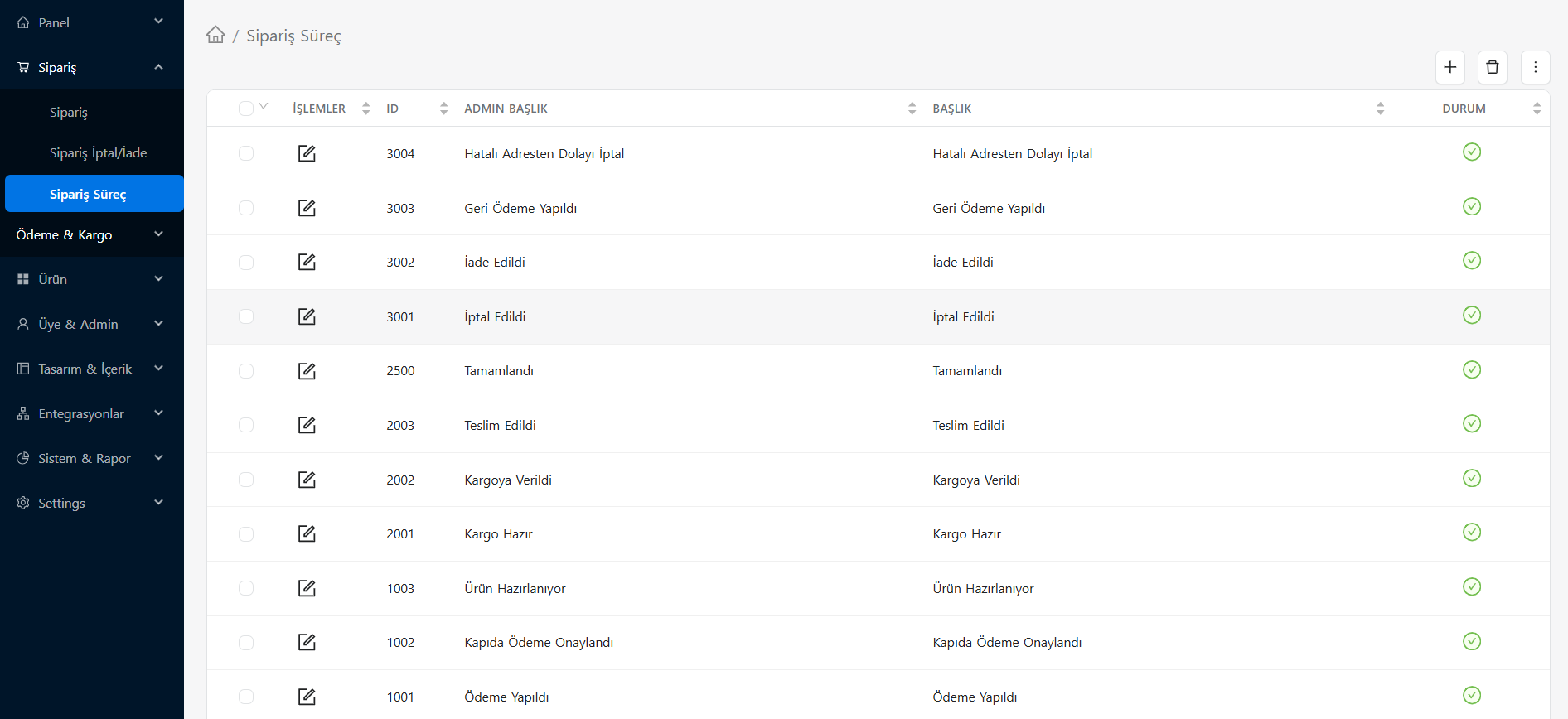
By using the (+) button in the upper right corner of the page, you can add a new process/situation specific to your business and delete the existing steps that you do not use. Green icons in the "Status" column in the table indicate that the relevant process is currently actively available.
What is it for?
- Create custom order statuses
- Edit process order
- Clarifying which action will be taken at which stage
Suggestion
Define a process list that aligns with the actual steps your operations team uses (e.g. Preparing, Packed, Shipped).
Process Organization and Language Management
You can click the edit icon next to any process in the list to configure the details of your order process. You can perform the following operations in the Order Status panel that opens:
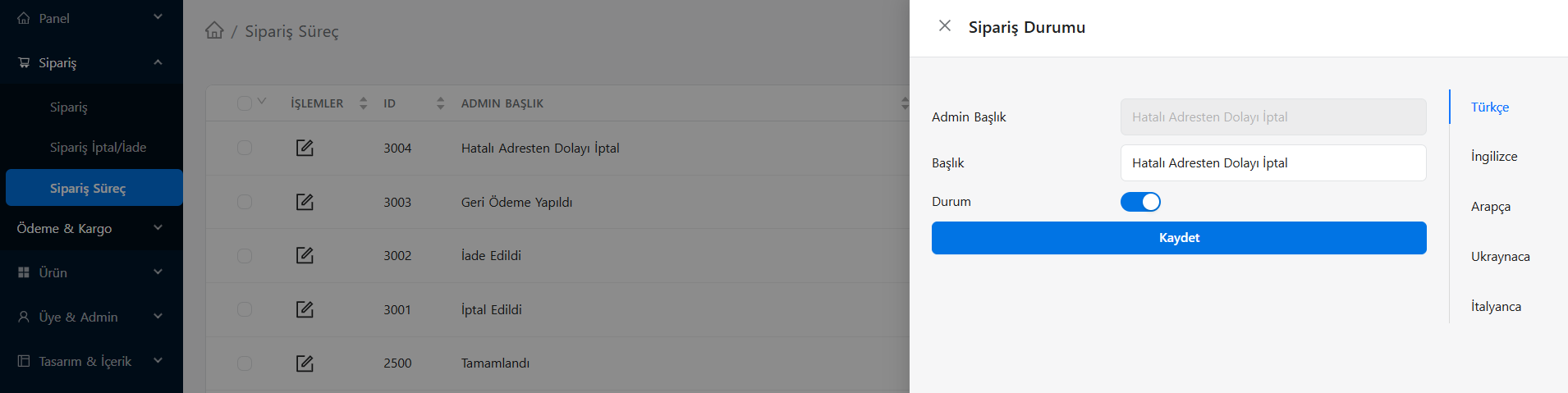
- Admin Title: This is a secret/internal naming that only you and your team can see in the administration panel.
- Title: This is the official status information that your customer will see when tracking their order from their panel.
- Multi-Language Support: You can enter the equivalents of the "Title" field in different languages by clicking the language tabs on the right (Turkish, English, Arabic, etc.). Thus, your foreign customers can follow the order process in their own language.
- Status: This is the confirmation button where you can determine whether this process will be available (active) or closed (passive) on the panel and system. When you are finished, you can complete the updates by pressing the Save button.