Order Management
Order screen is the main control point where all orders placed on your e-commerce site are centrally managed and monitored and transactions (cargo, invoice, etc.) are made collectively or individually.
It is very important that you use the filters and tools on this page effectively to manage your order density, provide fast support to customers and run your e-commerce operation smoothly.
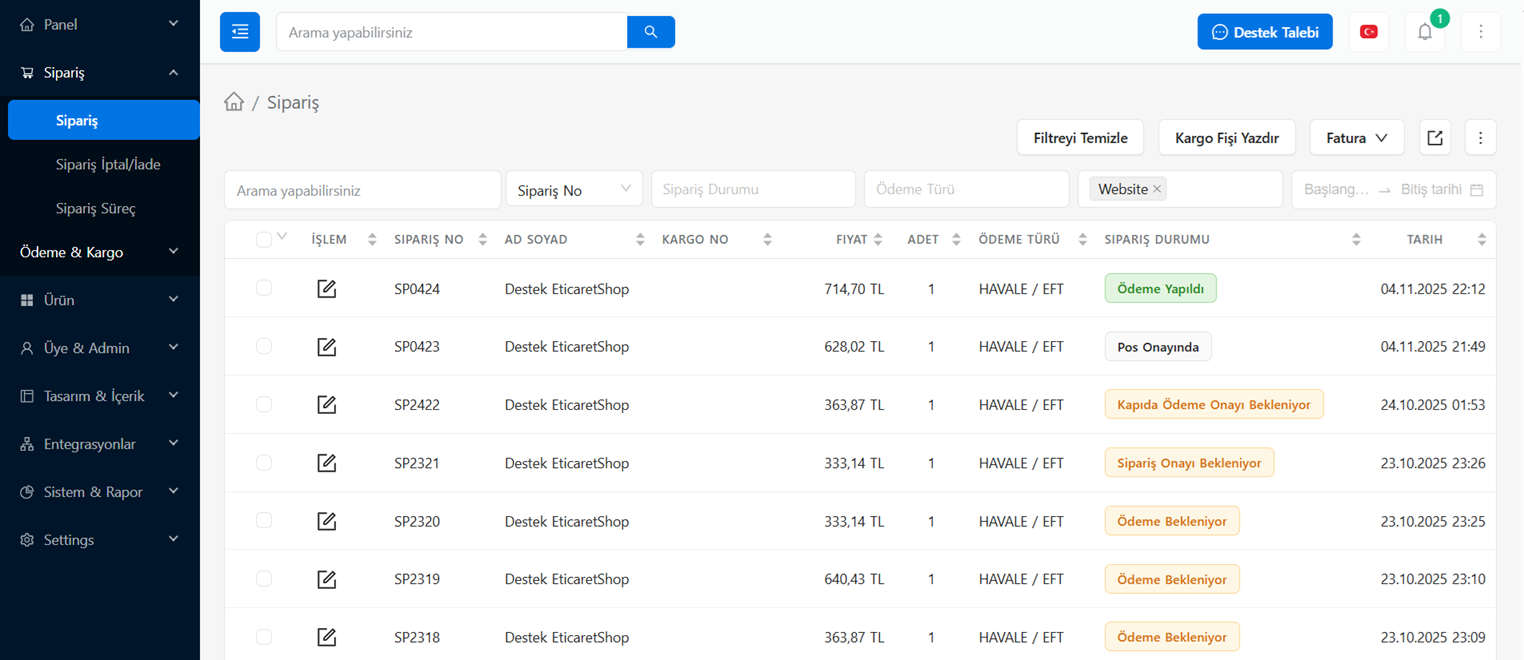
Order List and Table Meanings
The table that appears when you enter the page allows you to quickly see the most basic information about the orders.
- ACTION (Edit Icon): It is used to enter the detail page (content) of the order.
- ORDER NO: This is the unique code that the system automatically assigns to the order (Ex: SP2544).
- NAME SURNAME: The name and surname of the customer who placed the order.
- SHIPPING NO: The tracking number entered when the order is shipped appears here.
- PRICE / QTY: The total amount of the order and the number of products in it.
- PAYMENT TYPE: Payment method chosen by the customer (Ex: TRANSFER / EFT, Credit Card, Payment on Delivery).
- ORDER STATUS: Shows the current stage of the order (Ex: Awaiting Payment). Different status colors make it easier for you to visually distinguish orders during operation.
- DATE: The date and time the order was created.
Filtering and Search Features
There are advanced filter options at the top of the orders page that allow you to instantly find the orders you are looking for or want to trade.
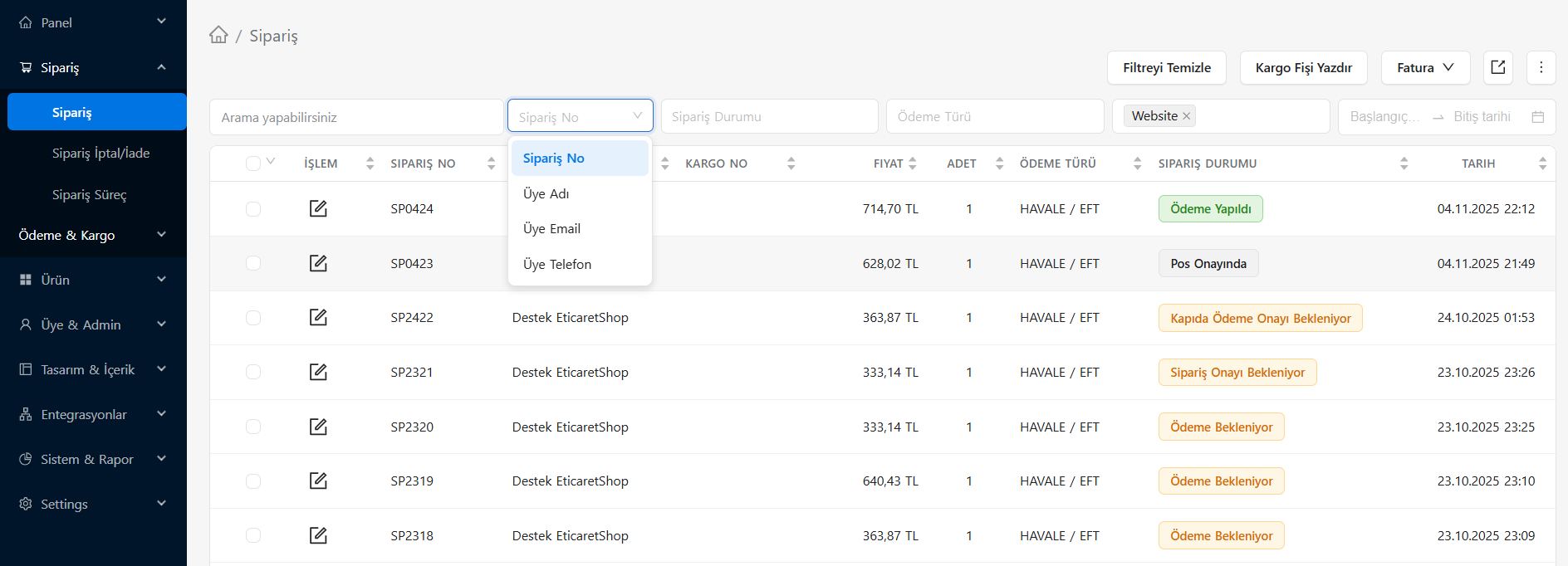
Search Field: Allows you to instantly find the customer's order using information provided to you.
- You can change the search type from the drop-down menu next to it: Order Number, Member Name, Member Email or Member Phone. (For example: If the customer called you by phone, you can instantly view the order by selecting the 'Member Phone' filter type and typing his number.)
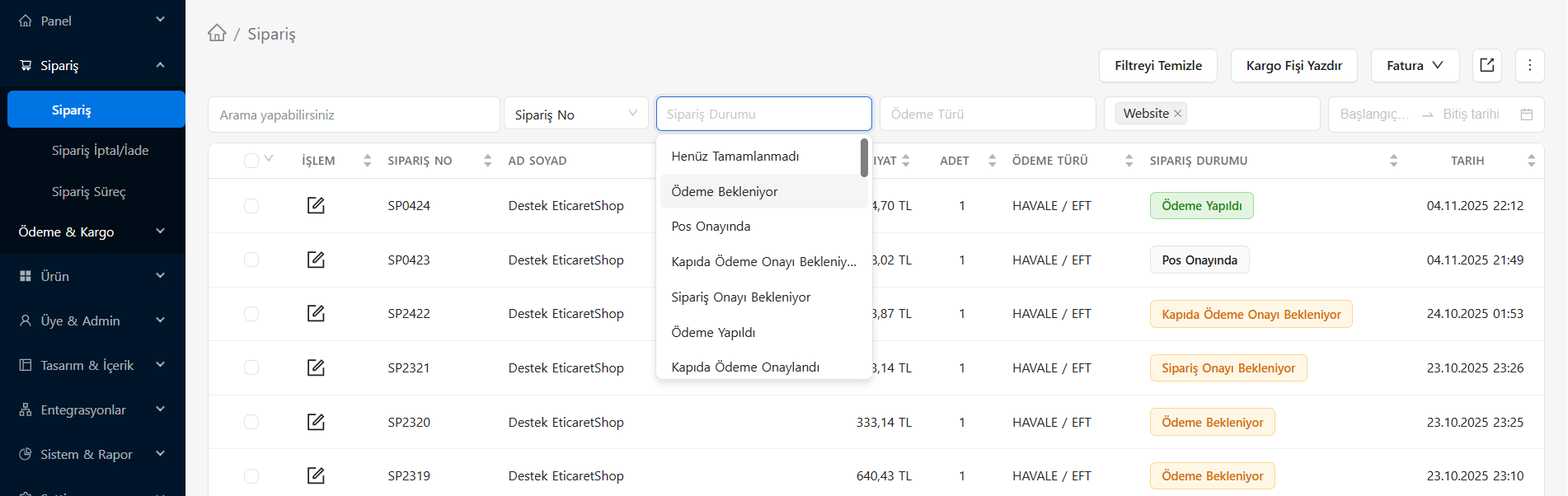
Order Status: To list only orders with a certain status (Ex: Only Awaiting Approval).
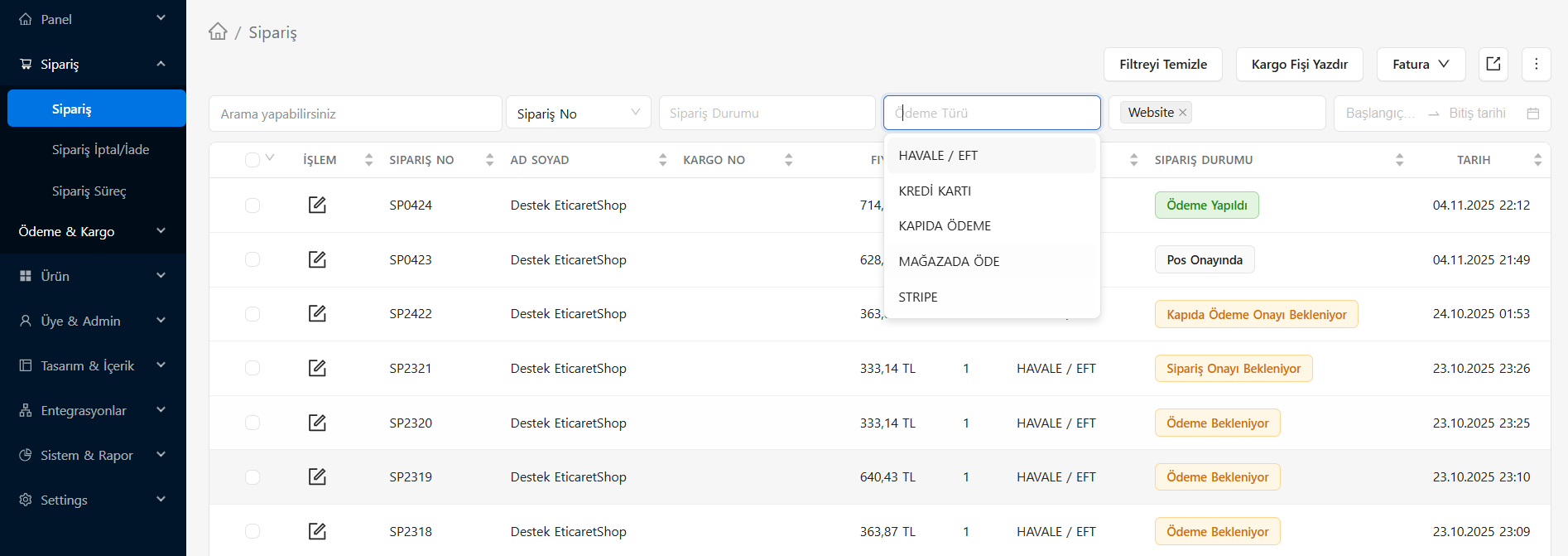
3. **Payment Type:** Allows you to narrow down orders according to the payment method chosen by the customer. Your options: - *MONEY ORDER / EFT, CREDIT CARD, PAYMENT ON DELIVERY, PAY IN STORE, etc*
4. **Platform (Sales Channel):** If you have connected your e-commerce site to marketplaces (Trendyol, N11, Hepsiburada, Amazon, etc.) or only want to see the orders on your own site (Website), you can use this filter.
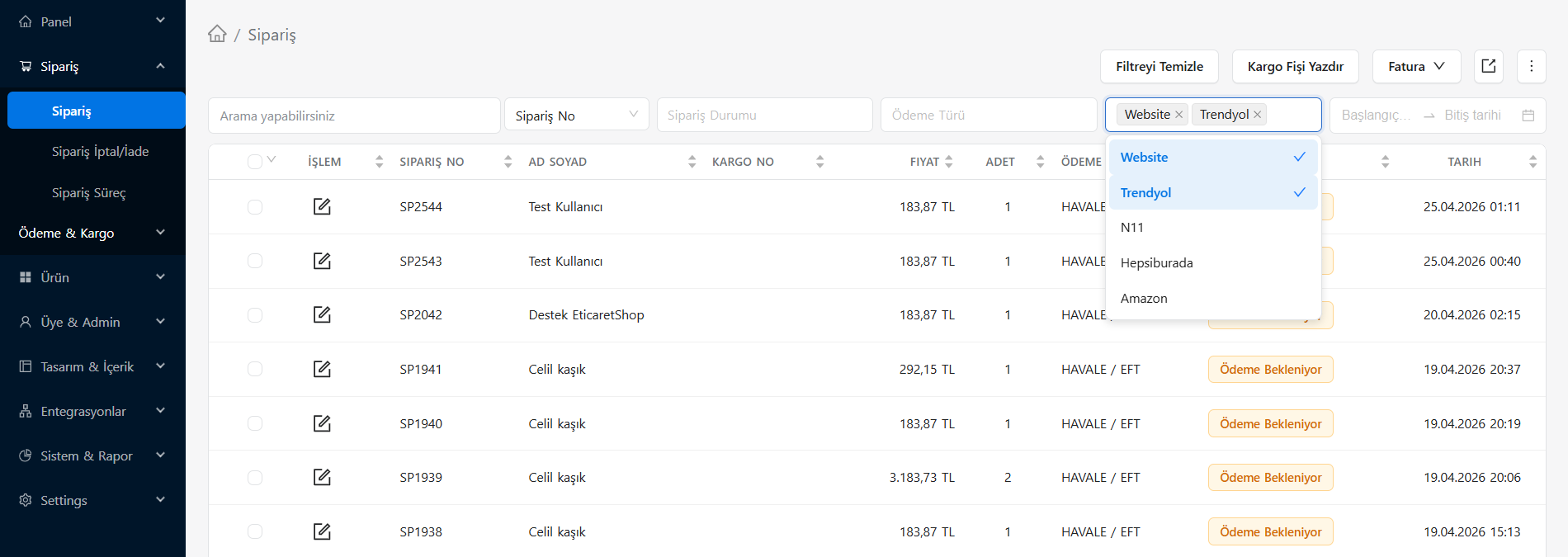
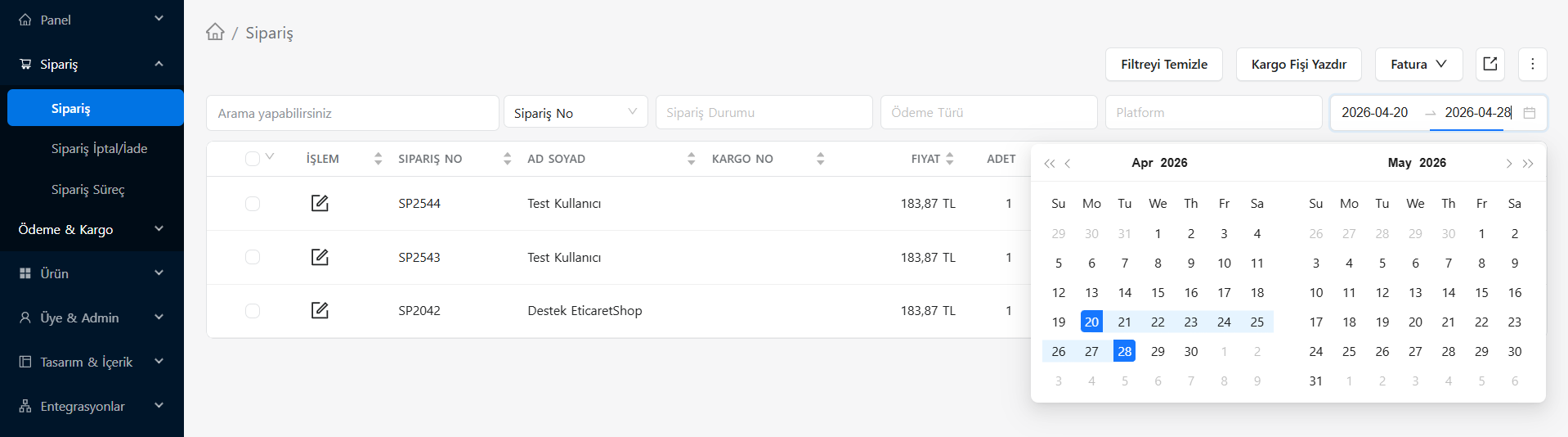
5. **Date Range:** You can list the orders of certain periods in the past by selecting 'Start... End date'.
PRACTICAL KNOWLEDGE
You can use the "Clear Filter" button above to reset all the filtering you have made with a single click.
Quick Tools and Batch Actions
Practical buttons are located at the top of the order list, allowing you to make transactions without going through them one by one:
Print Cargo Receipt: It is used to quickly print out cargo/labels to be pasted on selected orders.
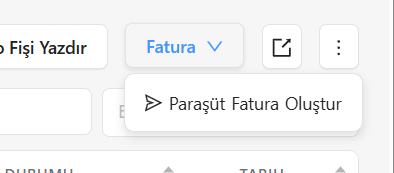
Invoice Integration: It works with the e-invoice infrastructure via the 'Invoice' drop-down menu. (As seen in the image, immediate action can be taken, for example, from the Create Parachute Invoice option).
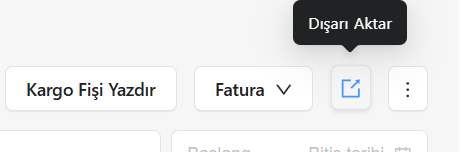
- **Export:** You can export the orders in your list to Excel / CSV etc. This is the button that allows you to download it to your computer in table formats. You can use this tool when transmitting lists to accounting or different units.
Order Detail
The Order Details page, which you access by clicking on the edit icon of any order in the order list (icon in the Transaction column), presents you with the anatomy of that order. On this screen, you can review all details about the order and make operational decisions.
Basic Information and Addresses
There are blocks with four fields at the top of the page. You can also quickly access the user's previous records through the tabs:
- Order Information Tab: Examines the details of the active order.
- Member Orders Tab: Provides a general list of other orders previously placed by the same member.
- Ip Orders Tab: Shows other orders created from the IP address where the order was placed (Useful for security and fraud control).
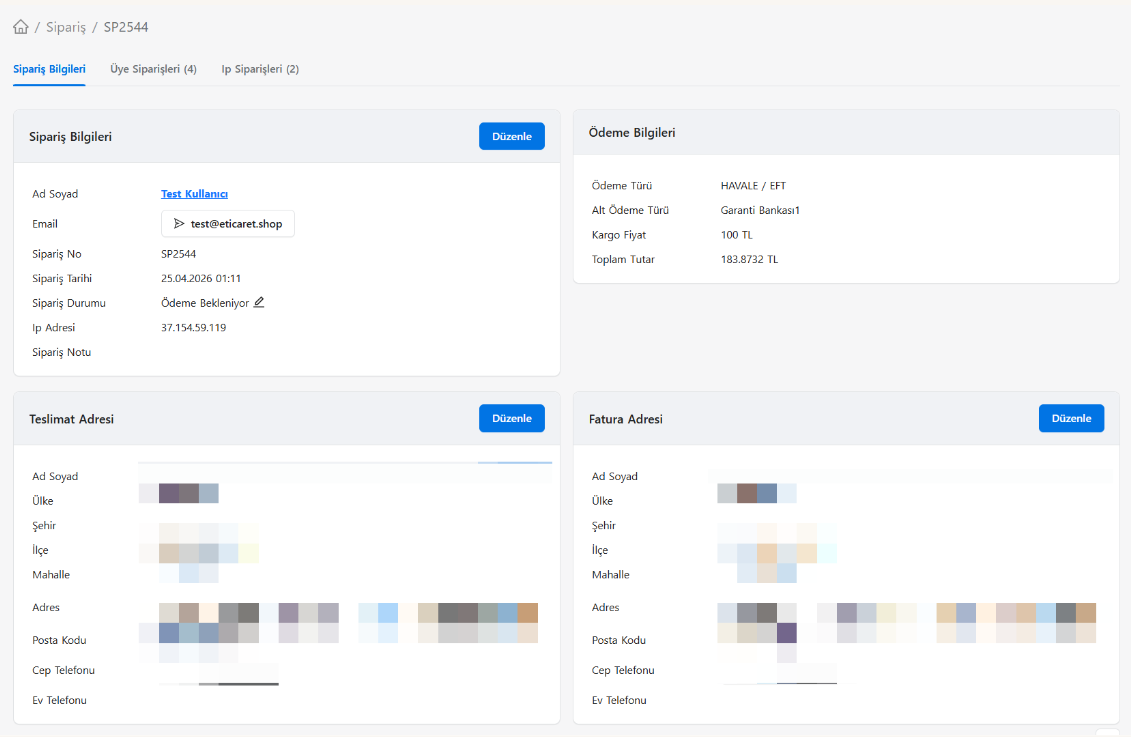
- Order Information (Upper Left): Contains name-surname, member e-mail address, order number, transaction date, current order status (e.g. Awaiting Payment) and IP address. From here you can update the general status of the order or add an order note by clicking the "Edit" button.
- Payment Information (Top Right): This is the area where you can see which method the customer paid (eg: TRANSFER / EFT -> Garanti Bank), sub-payment type, shipping price and the grand total to be collected.
- Delivery Address (Bottom Left): Indicates the address to which the product will be delivered. If the wrong address is entered, it can be edited before shipping with the "Edit" button on the top right.
- Invoice Address (Bottom Right): Contains the official information for which the invoice will be issued. If a corporate invoice is requested instead of an individual order, company information (Tax Office/No, etc.) can be added or changed from the "Edit" menu here.
Products and Cart Summary
The product items included in the order are listed at the bottom of the page.
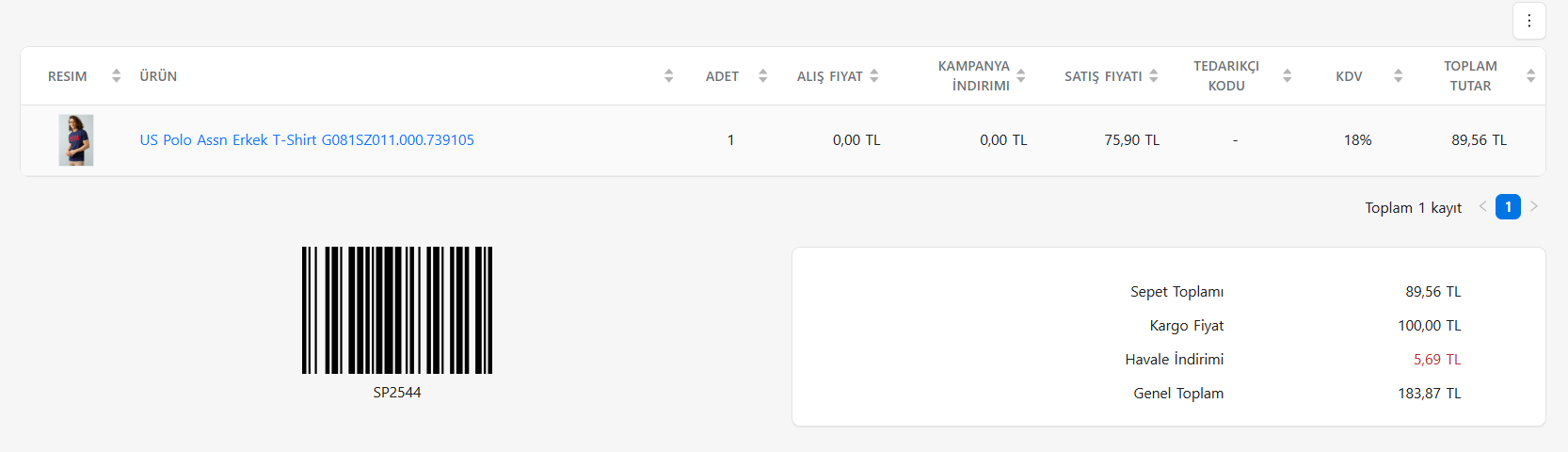
- Product List: You can quickly evaluate how many units of which product (including barcode/SKU) were sold, product-specific buying/selling prices, VAT rate and line-based total amount. The list includes the product's picture and related names.
- Barcode: The barcode at the bottom left of the screen (ex: SP2544) facilitates the quick scanning of this order with a barcode reader, processing in the warehouse, packaging and cargo integration process.
- Cart Summary (Bottom Right Table): Includes the bare total of the products added to the cart, the shipping fee added, discounts specific to the selected payment type (Ex: Money Order Discount) and the net Grand Total to be collected from the customer. It allows you to see step by step how the price rules you enter affect the order.