Filter
Filters
You need to create the filter group and filter options that you can specify for the product in the product detail on this page. On the Filters page, you can add a new filter group (e.g. material), add or remove options for the filter group (e.g. genuine leather, suede, etc.) and arrange their order. You can edit the names of the filter groups that you want to appear differently on the admin and site side.
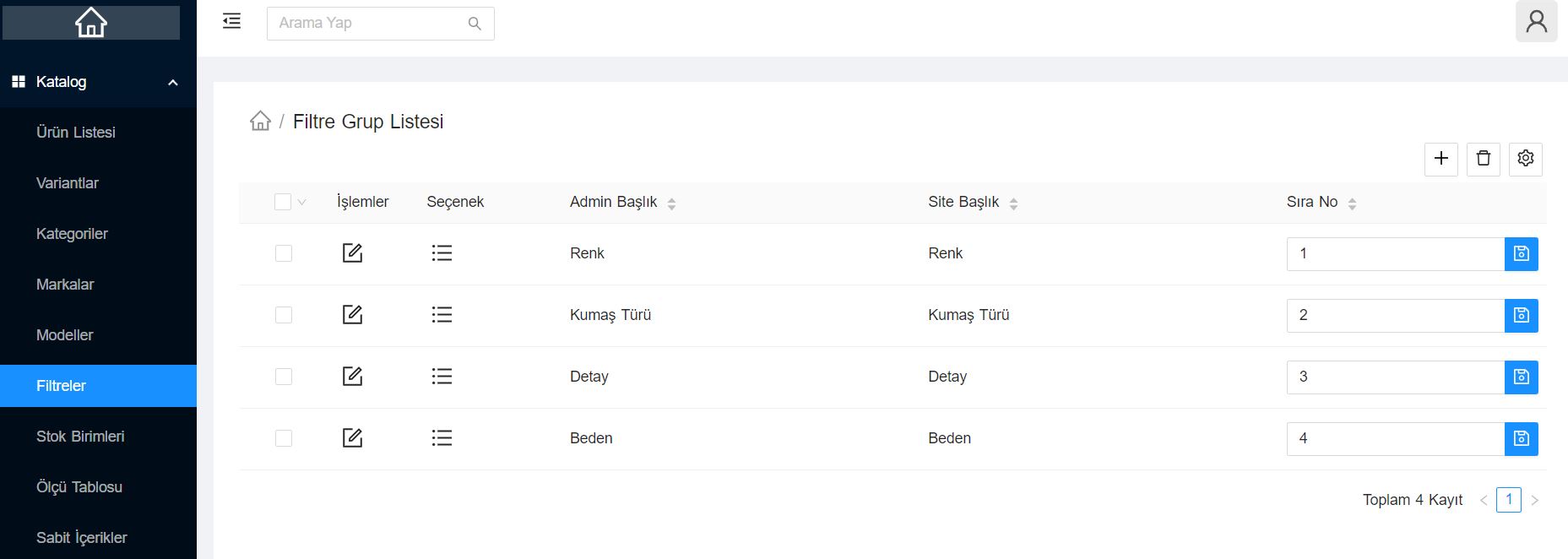
Assigning the most accurate filters to your product will increase the findability of the product. Products are quickly filtered by your visitors. Matching filters when sending products to marketplaces can also contribute to easy filtering and displaying of the product in marketplaces.
Adding a Filter Group
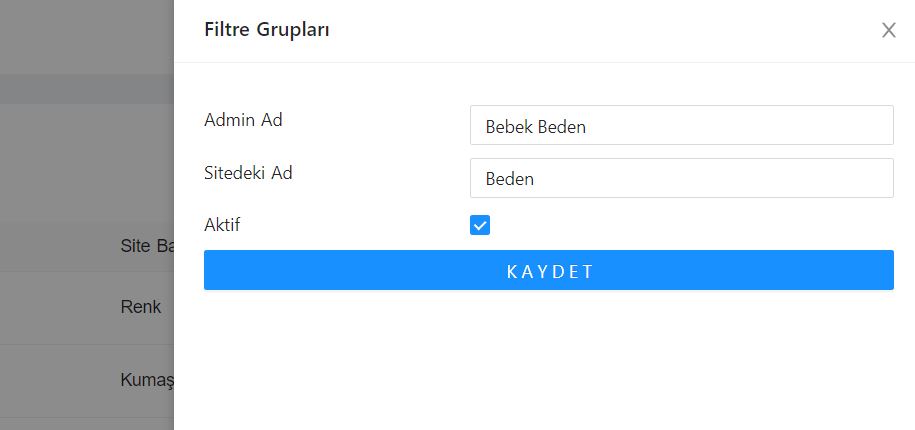
Click the + (plus) sign in the upper right corner to add a new filter group. Fill in the name that will appear on the admin side, the name that will appear on the site side, and whether the filter is active, and click the Save button.
Adding Filter Options
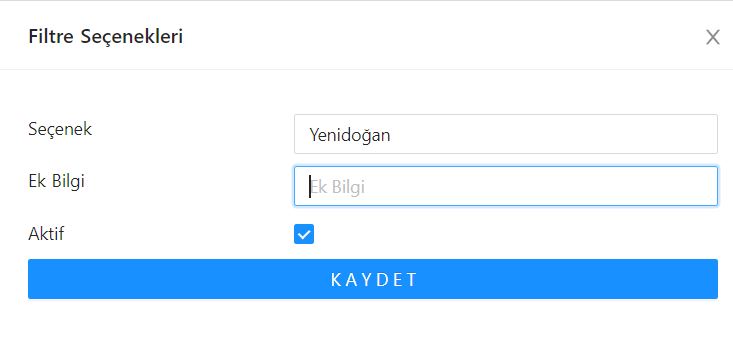
You can now create options for the new filter group you added. To do this, click on the Option icon in the relevant line in the Filter Group List and click on the + (plus) sign in the upper corner of the page that appears. In the window that opens, you can fill in Option, optionally Additional Information and Active for the visibility status and click save. When you enter the color code in the Additional Information field, you can show it as a color in the filter block on the front of the site.
In this way, you can create filter options and list the filters in the order you wish by entering a number in the Sequence Number field.
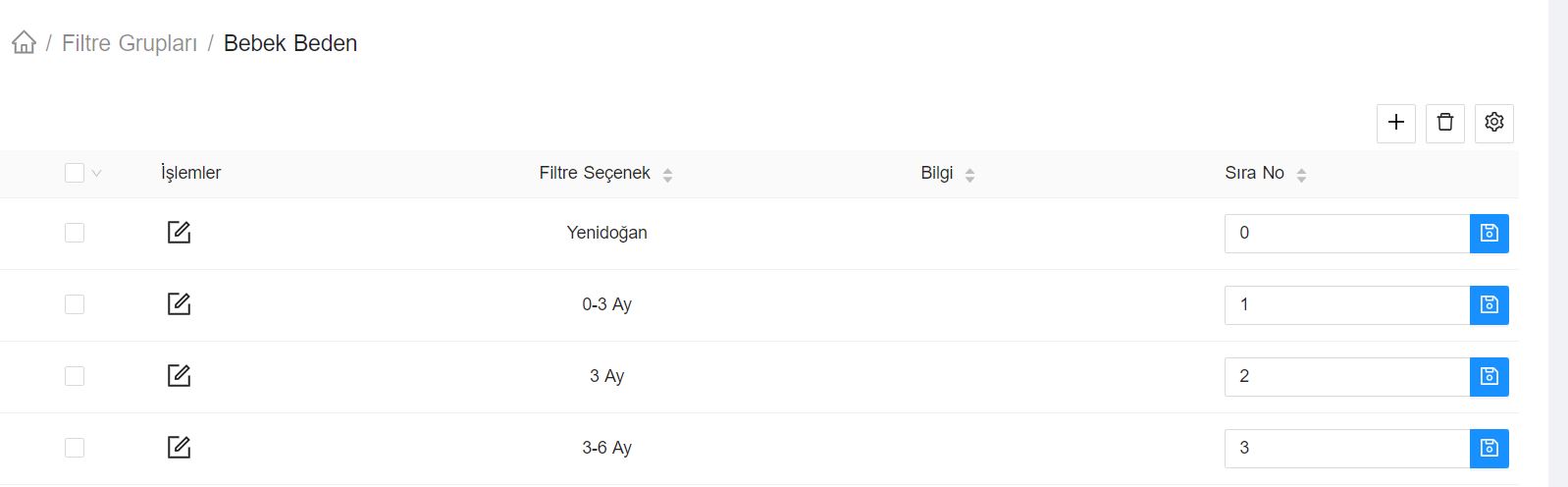
For multilingual sites, you can enter names in different languages for filter groups or filter options in the window that opens by clicking the edit icon on the listing screens.