Payment Method
On the Order > Payment & Shipping > Payment Method screen, the payment options that customers will see in the cart step are configured and managed.
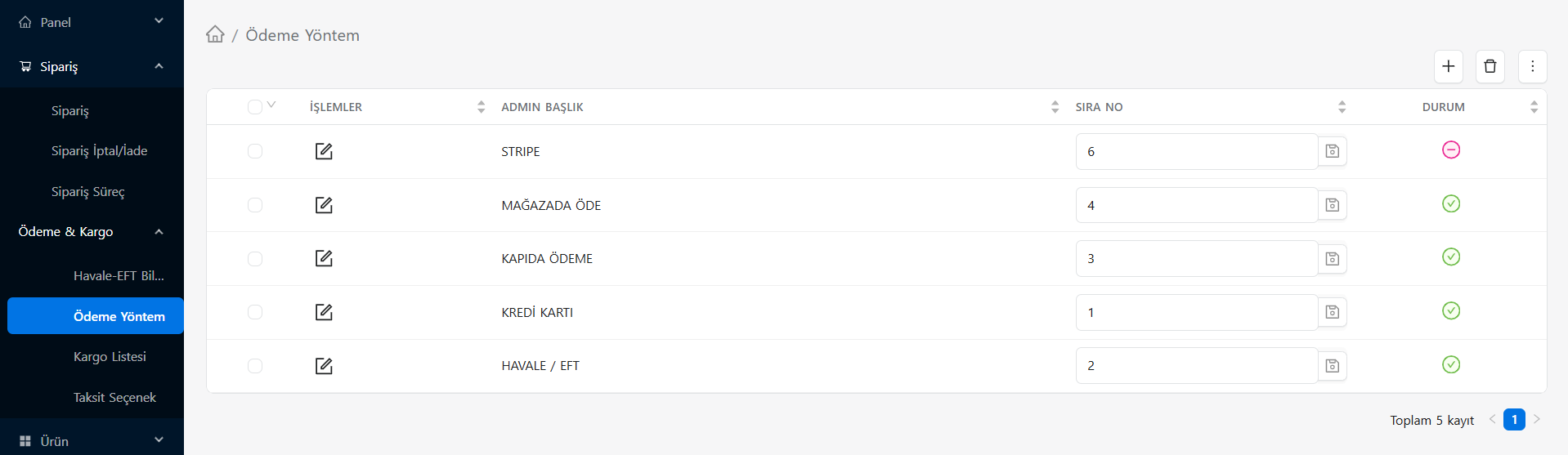
You can manage the following details of payment methods in the list on the page:
- Admin Title: This is the payment model name that you can see in the administration panel.
- Sequence Number: Determines the order in which this payment method will be displayed to the customer on the payment screen. You can instantly update the order by typing the number you want in the box and clicking on the small save icon next to it.
- Status: The green check icon on the right indicates that the relevant payment method is currently being used actively, while the pink minus (-) symbol indicates that the method is temporarily closed/inactive.
Payment Method Details and Regulation
When you click on the Edit (Transaction) icon in the list, you will reach a detailed panel where you can set up the background operation of the selected method (Ex: PAYMENT ON DELIVERY).
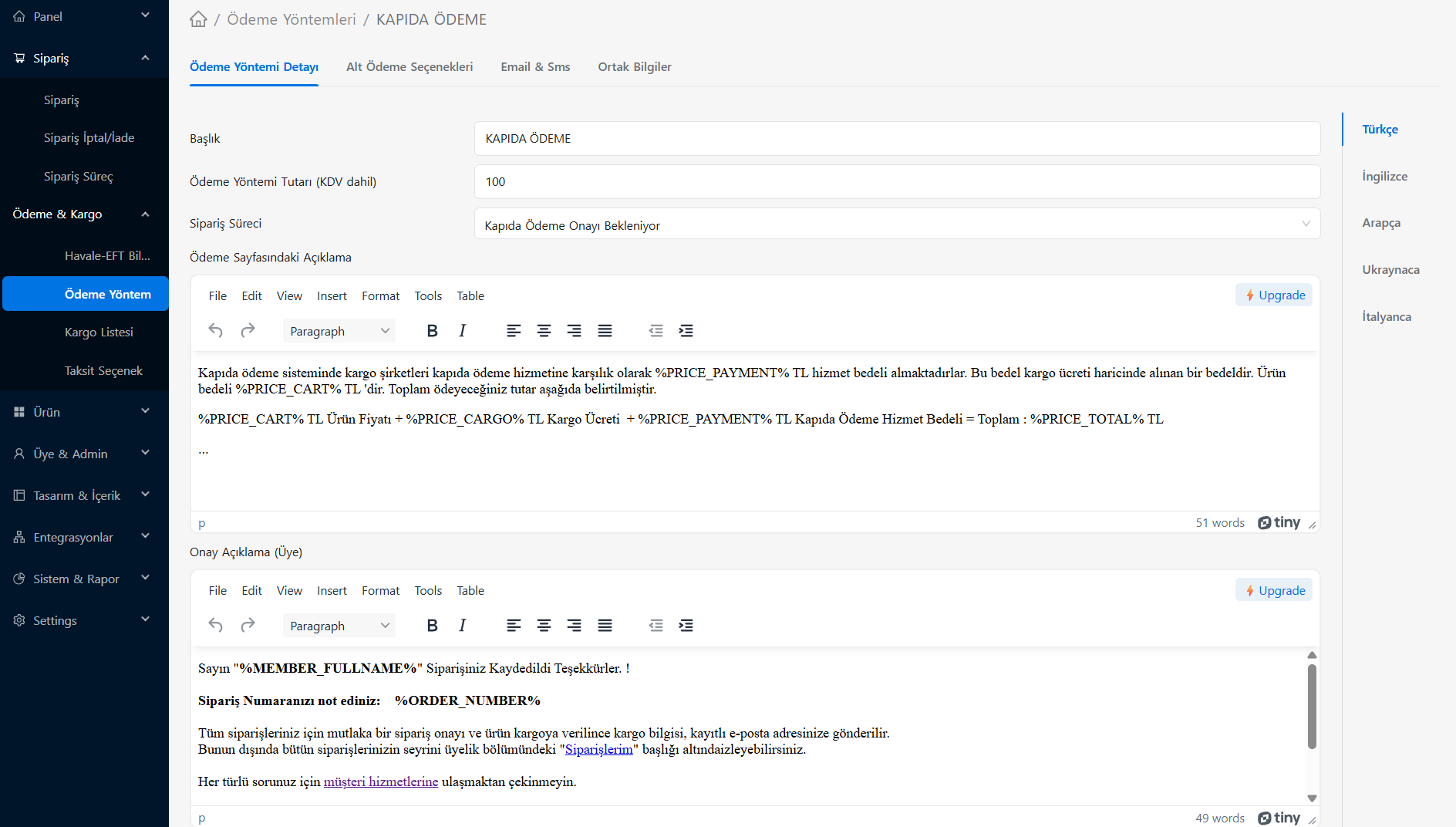
On this screen, you can make the following settings using the tabs at the top:
1. Payment Method Details
- Title: This is the payment model name that the customer will see in their cart. You can add translations for your international customers by clicking on the language structure (English, Arabic, etc.) on the right.
- Payment Method Amount (VAT included): This is the extra fixed commission/fee amount that will be reflected on the order, especially in cases such as Payment on Delivery (service fee).
- Order Process: When the customer places an order with this method, it determines which status tag (Ex: Waiting for Payment Confirmation at the Door) the order will automatically start in the list.
- Description on the Payment Page: This is the warning/information text that appears when this payment type is selected in the cart. By using variable parameters such as
%PRICE_PAYMENT%,%PRICE_TOTAL%in the rich text editor, you can automatically calculate the instant basket amount and commission and reflect them in the text. - Confirmation Description (Member): This is the text shown on the "Your Order Received" screen when the customer creates the order successfully. You can also prepare personalized thank you messages with
%ORDER_NUMBER%(Order Number) or%MEMBER_FULLNAME%parameters.
2. Sub Payment Options Tab
This tab is the area where sub-breakdowns depending on the main payment method are detailed. For example, for Payment on Delivery, the customer is offered selectable options such as Cash or Credit Card on that screen.
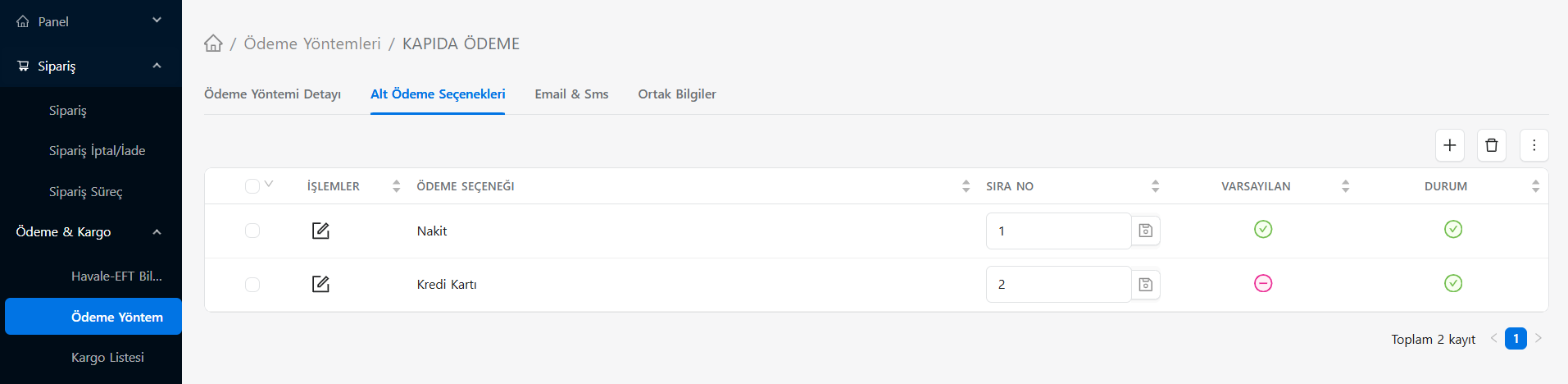
The settings in the table are as follows:
- Payment Option: This is the name of the sub-method that will be offered to the customer (Cash, Credit Card).
- Sequence Number: Determines the order in which these options will be listed on the screen.
- Default: Sets which option will be checked (selected) first when the page is opened. There can only be one "Default" active (green icon), the others will show a pink minus (-).
- Status: Whether this sub-option is active or passive is managed via the icons on the right.
Note: The bank accounts to be paid into in the money transfer method, and the card brands and installment/rate adjustments in the Virtual POS method are also configured in the "Sub-Payment Options" tab of the relevant payment method.
3. Email & SMS Notifications
This is the section where automatic notifications will be sent to customers when an order is created using the selected payment method.
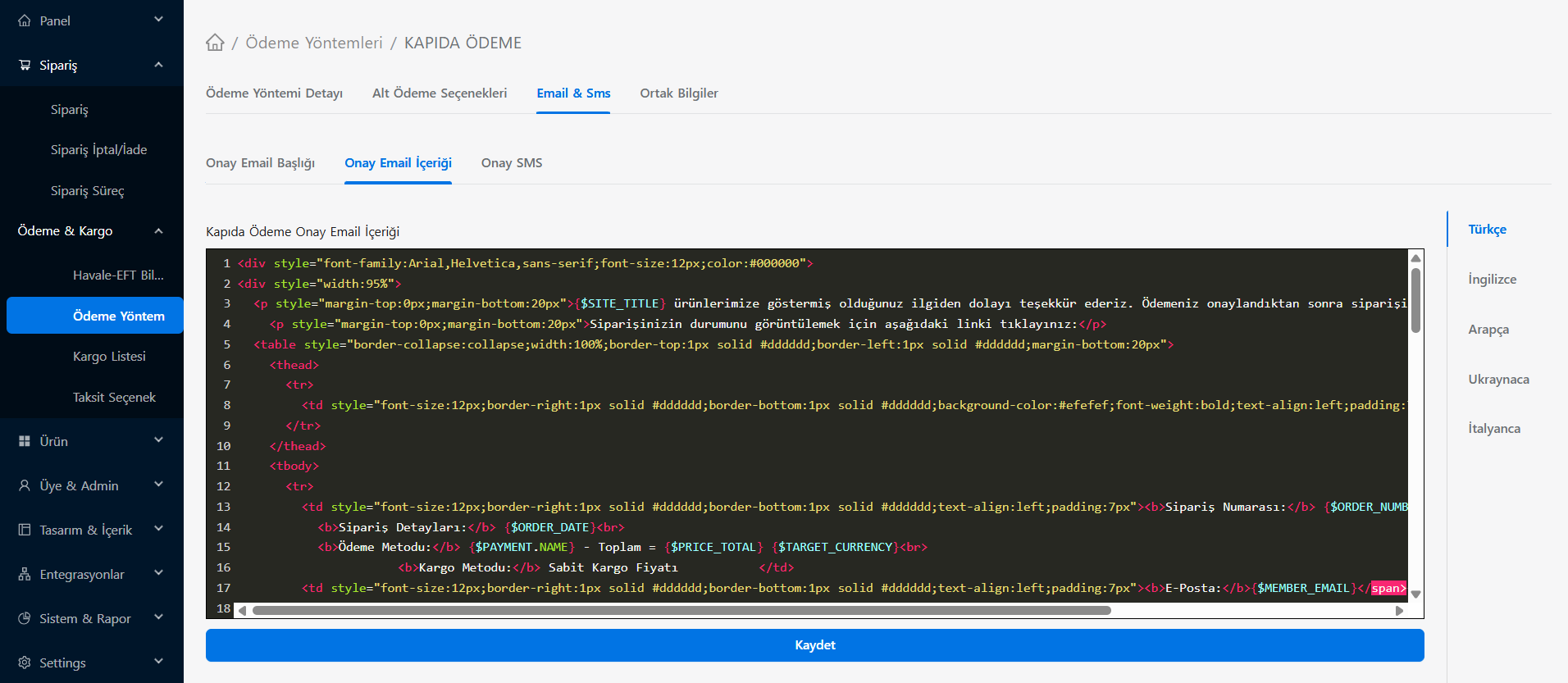
You can customize these settings using the sub-tabs:
- Confirmation Email Title / Content: You can edit the subject title and visual/source code content of the order confirmation email that will be sent to the customer here. By adding systematic variables (parameters) such as
{$ORDER_DATE},{$PRICE_TOTAL},{$PAYMENT_NAME},{$MEMBER_EMAIL}into the editor, you can enable the customer to automatically retrieve his own information. You can also prepare multilingual email templates from the right side (English, Arabic, etc.). - Confirmation SMS: This is the field where the standard text message template is created to be sent to the user's mobile phone registered in the system when the order is successfully received or approved.
4. Common Information (Contract and Forms)
In this tab, source code texts of legal documents covering the selected payment method (or the site in general) are edited. Contracts that customers give electronic approval during the order confirmation step are housed here.
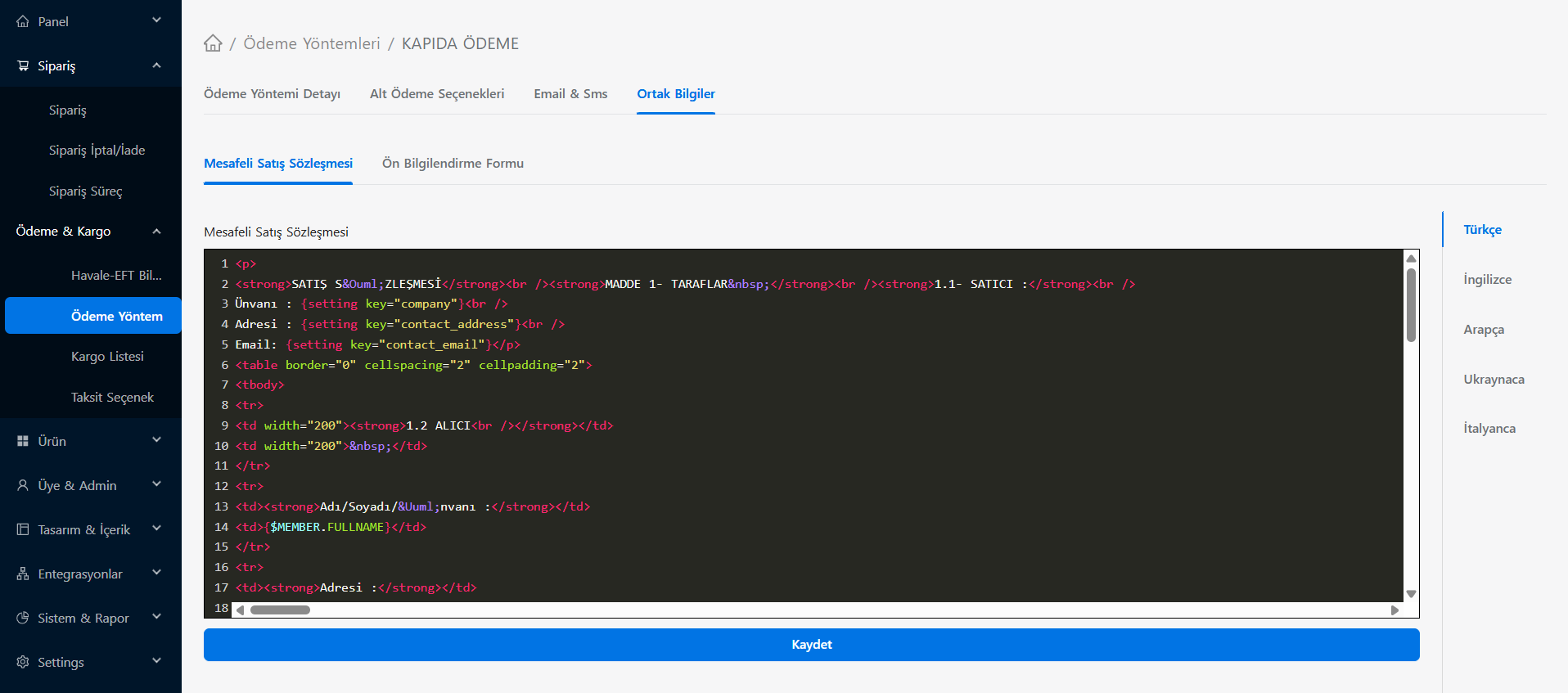
- Distance Sales Agreement / Preliminary Information Form: These are the areas where these legal forms, which are mandatory for every order, can be prepared with HTML code structure.
- System Variables (Settings/Member): In order for contracts not to remain fixed like printed drafts and to be created specifically for each customer, dynamic software tags such as
{setting key="company"},{setting key="contact_address"}(Your company information) or{$MEMBER.FULLNAME}(Customer's name and surname) are used in the text. Thus, when the checkbox is ticked, a personalized transparent contract is created behind the scenes. - Again, as in all text fields, for foreign legislation translations, a contract specific to each language can be created from the language tabs on the right.