Scss & Font
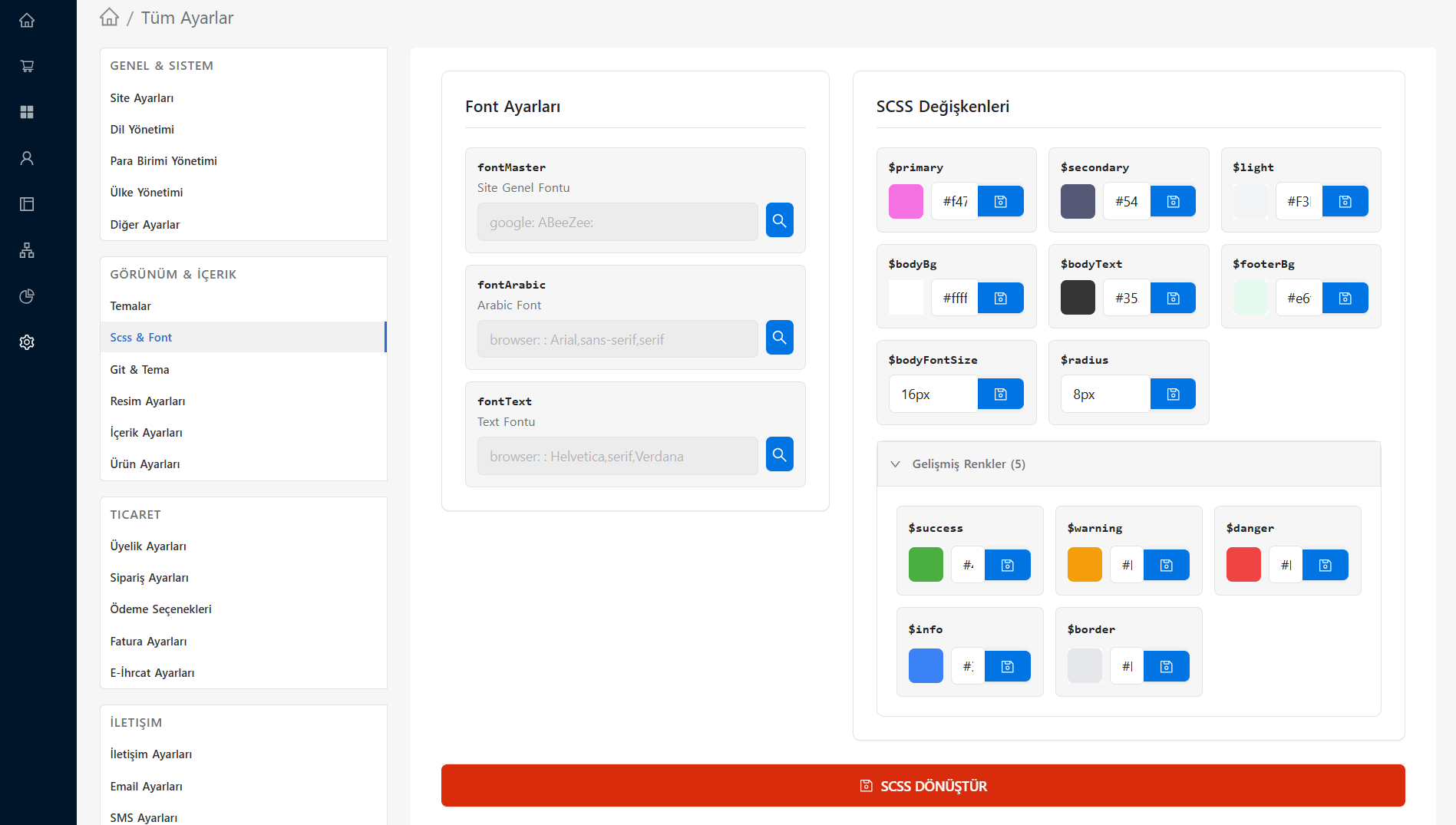
You can manage your site's general color palette, typography (font) settings and special style (SCSS) definitions from the Settings > All Settings > Appearance & Content > Scss & Font screen. You can quickly define colors and fonts that match the corporate identity of your site without needing code knowledge.
Color and Font Management
Through this screen, you can edit your theme's main colors, text fonts and design variables from a visual interface.
What to Do on This Page?
- Main / Auxiliary Colors: Determining theme-based primary and secondary colors.
- Font Selection: Choosing font families for headings and body texts.
- Highlight Colors: Editing button, link, hover and eye-catching accent colors.
- SCSS Variables: Configure which SCSS variables are assigned to the background colors in your theme.
Color and Font Editing
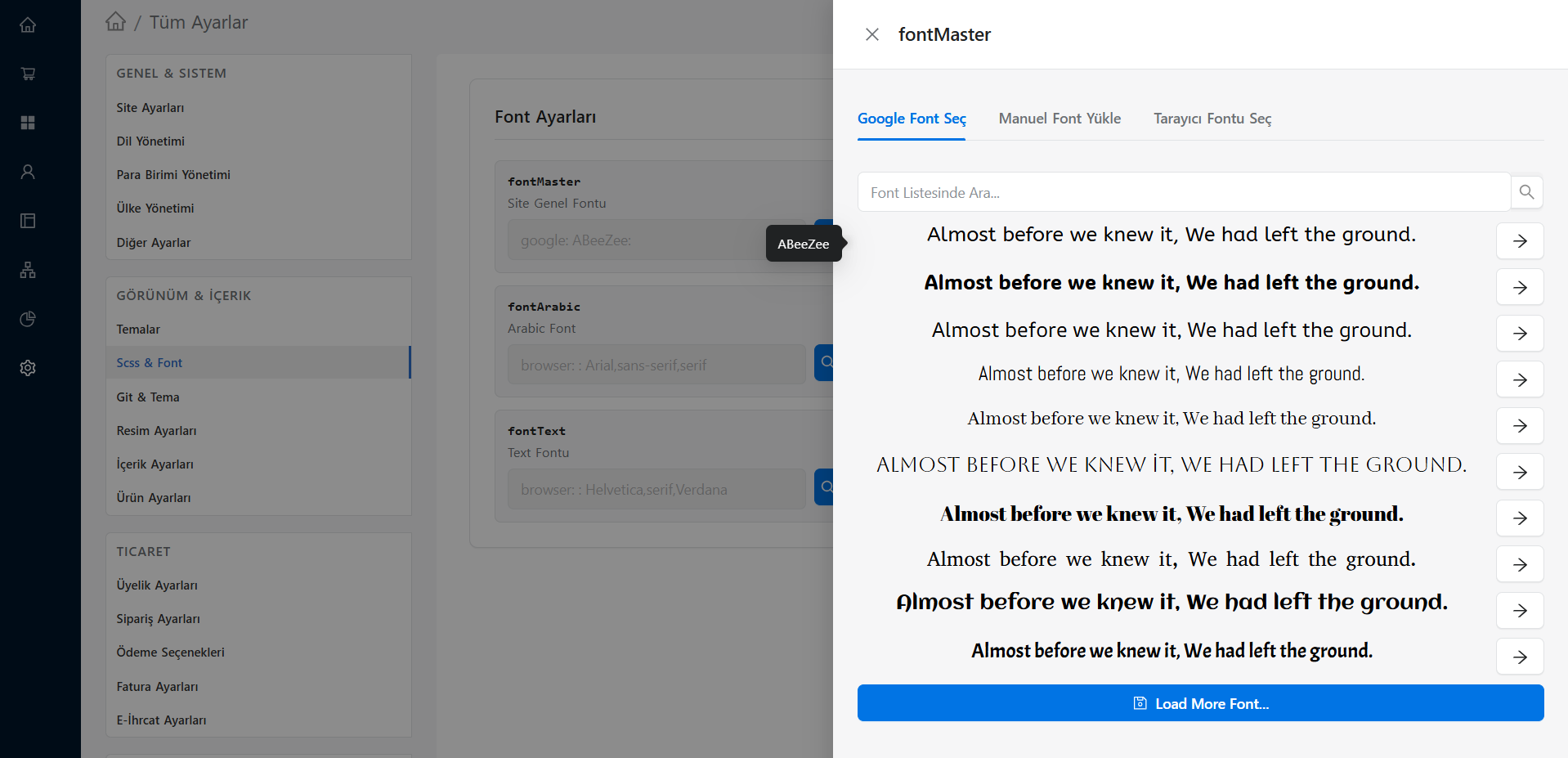
You can change the content of that variable by clicking the Edit (Pencil) button next to the setting you want on the interface.
Recommended Stream
- Determine Your Brand Colors: First, choose your main color that is compatible with your company logo and brand identity.
- Test Contrast: Keep the contrast of your text and background colors high to improve readability.
- Try Fonts: Choose bolder and more eye-catching fonts for headlines and readable fonts for texts (e.g. Inter, Roboto, Poppins).
- Check on Different Devices: After the change, go to the front of your site and make sure that both computer and mobile views look good.